Why your AI video looks fake, and how to fix it
Morphing hands, melting faces, floaty motion and flicker give AI video away. The causes, the prompt and editing fixes, and a frame check with ffmpeg.
Saqqa Academy team
24-Nov-2026 · 7 min read
In this article
AI video usually looks fake for one of five reasons: the start image already looks fake, the prompt asks for too much motion, the clip runs too long so faces and hands drift, the camera move has no physical weight, or the edit gives it away with no sound, wrong pacing or a sudden quality change. Fix them in that order. Start from a photo-real image, ask for one small movement and one simple camera move, keep clips short, check the clip frame by frame for morphing, and finish it with real sound and tight cuts. Most "fake" clips are not saved by a better model; they are saved by a better start image and a smaller ask.
The fixes in this post are our own working method from making product ads and character clips. They aren't official rules from any video tool. The ffmpeg commands were tested on Windows with ffmpeg 6.1 on 24 November 2026.
The five things that give AI video away
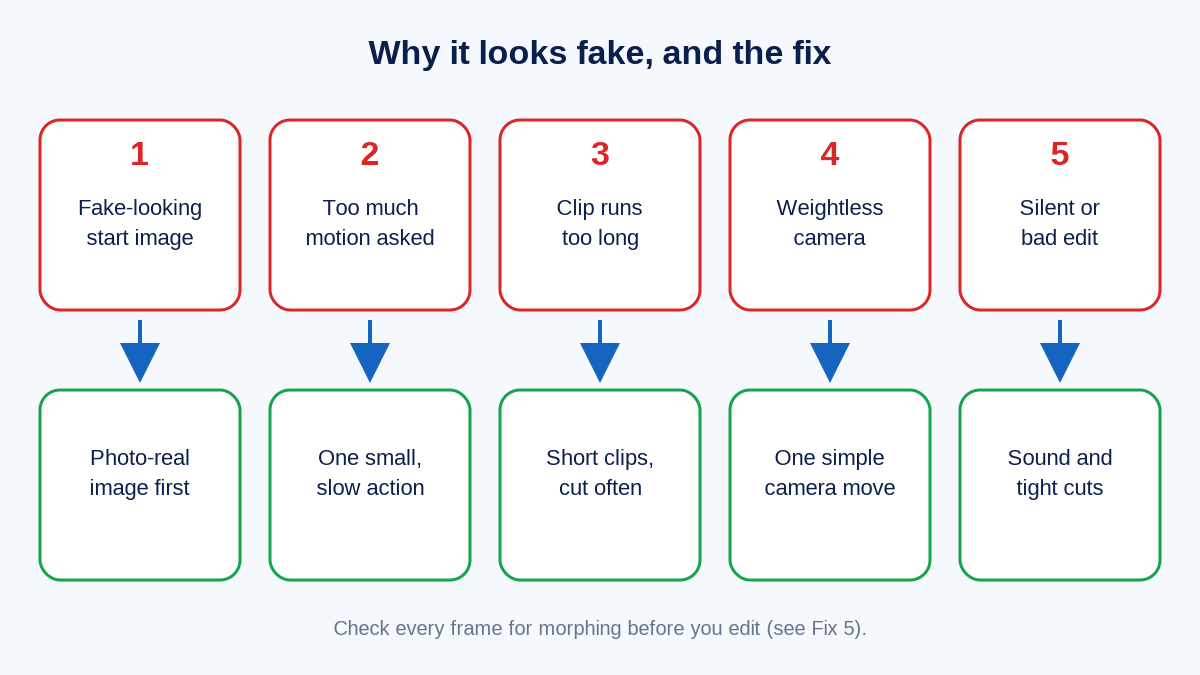
Viewers rarely say "the physics is wrong". They say "something feels off". That feeling comes from a few repeatable problems:
- Plastic skin and perfect light carried over from the start image.
- Morphing: fingers that merge, teeth that change, a logo that melts, a face that slowly becomes someone else.
- Floaty motion: people who glide instead of stepping, hair that moves like water, objects with no weight.
- Flicker: small details (text, patterns, jewellery) that shimmer from frame to frame.
- A silent or badly cut clip: no room sound, no footsteps, a cut that lands in the middle of a movement.
Fix 1: Start from an image that already looks real
In image-to-video, the video model keeps what it sees in the first frame. If the start image has plastic skin, flat studio light or a background that's too clean, the video keeps those too and then adds motion problems on top.
So fix the image first. Describe a photograph, not a subject: the camera, the lens, real light from one direction, and small imperfections like skin texture or a slightly messy table. Our guide on why AI images look fake covers these changes in detail, and how to describe lighting in product image prompts shows how to get light that looks like it came from a real window or lamp.
A quick test: if you wouldn't believe the still image on its own, don't animate it yet.
Fix 2: Ask for one small action
The more a video model has to invent, the more it gets wrong. "She picks up the box, opens it, smiles, turns to the camera and waves" asks for five actions in one clip. Each action is a new chance for a hand to melt.
Ask for one action, described in plain physical words:
Weak:  The woman is happy with the gift box and shows it off.
Better: The woman slowly lifts the lid of the gift box with both hands
        and looks down at it. Her hands stay on the box. Camera holds still.
The better prompt says what moves, how fast, and what stays fixed. Saying what stays fixed ("her hands stay on the box", "the logo stays sharp") is one of the most useful habits in image-to-video. Our post on how to write an image-to-video prompt that actually moves breaks this into five parts you can reuse.
Fix 3: Keep clips short and cut often
Faces and hands drift more the longer a clip runs. Instead of one long clip, make several short ones and cut between them, the way a real ad is edited. A real product ad rarely holds one shot for long anyway.
When you need a longer moment, build it from pieces: use the last frame of one clip as the first frame of the next, so the subject stays the same. Our guide on making a longer AI video in Google Flow shows how to do this with Extend and last frames.
Fix 4: Give the camera weight
Real cameras are held by people or sit on tripods, sliders and gimbals. AI cameras often swoop, spin and fly through walls, which feels like a video game. Pick one move that a real crew could do:
- a slow push in toward the product,
- a gentle handheld sway,
- a slow pan left or right,
- or no move at all, which is often the most real.
Avoid combining moves ("orbit while zooming out and tilting up") and avoid very fast moves near hands and faces, where morphing shows most.
Fix 5: Check every frame before you edit
Morphing often happens for a few frames only, and at normal speed you miss it. Two quick checks with ffmpeg (a free command-line tool) catch most of it.
Export two stills per second and look through them like a flip book:
mkdir frames
ffmpeg -i clip.mp4 -vf fps=2 frames/frame_%03d.png
Or put the first 16 of those stills on one contact sheet, so you can see the whole clip at a glance:
ffmpeg -i clip.mp4 -vf "fps=2,scale=270:-1,tile=4x4" -frames:v 1 sheet.pngWatch the clip slowed down to a quarter of its speed, which makes floaty motion and melting fingers easy to spot:
ffmpeg -i clip.mp4 -vf "setpts=4.0*PTS" -an slow.mp4We tested all three on an 8-second vertical test clip: the first made 16 stills, the second made one 4×4 sheet, and the third made a 32-second slow copy. On a contact sheet, look for the face changing shape, extra or merged fingers, text or logos changing, and objects that appear or vanish.
If only a few frames are bad, you often don't need to generate again: cut around them in the edit, or end the clip just before the problem starts.
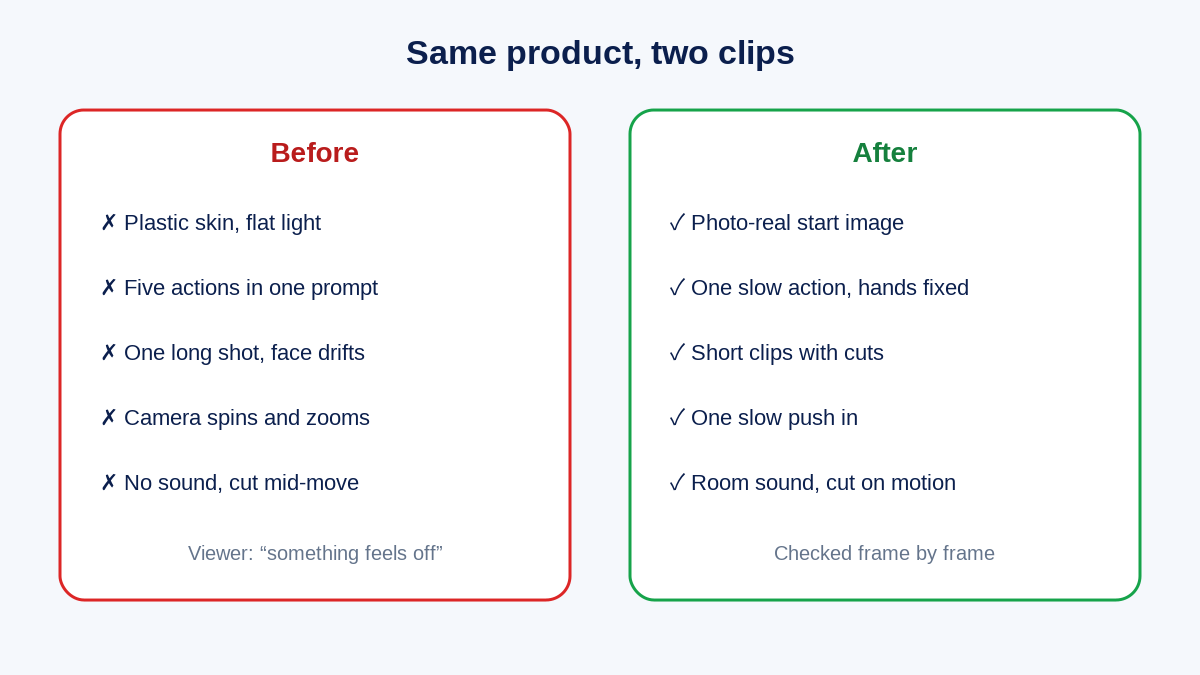
Fix 6: Finish it like a real video
A silent clip feels fake even when the picture is good. Add a quiet room tone or outdoor ambience under the whole video, and small sound effects where something touches something: a lid, a footstep, paper. Keep music lower than the voice. Our post on adding music to an AI video without copyright claims explains how to pick tracks safely.
Then check the edit:
- Cut on movement, not in the middle of a still moment, so cuts feel natural.
- Match the look of all clips (colour, sharpness, grain) so one clip doesn't stand out as "the AI one".
- Don't over-sharpen or upscale too hard. That makes skin waxy and edges crunchy.
- Use captions that are easy to read, because a viewer reading is a viewer not hunting for faults.
Making AI clips look real, shot by shot, is a core skill in our AI Content Creator Program, where every module ends with a practical task. And when a realistic AI video is ready to post, remember to turn on the AI label: realistic doesn't mean hiding that it's AI.
Frequently asked questions
Why do hands and fingers melt in AI video?
Hands have many small parts that move fast and cover each other, so the model has to guess a lot between frames. Ask for slow hand movement, keep hands in contact with an object ("her hands stay on the box"), keep the clip short, and cut away before a problem frame.
Does a better video model fix fake-looking clips?
It helps, but the start image and the prompt matter more. A newer model given a plastic-looking image and a five-action prompt still gives a fake-looking clip. Fix the input first, then compare models.
How do I stop text and logos flickering in AI video?
Start with an image where the text is already correct and sharp, ask for little or no camera movement near the text, and say in the prompt that the logo stays sharp and unchanged. If it still shimmers, put the real logo or text on top in the editor instead. Our guide on fixing misspelled text in AI product images shows the same overlay idea for stills.
How long should one AI video clip be?
Short enough that nothing drifts. Check each clip with the contact sheet above; if the face or product starts changing near the end, trim the clip before that point and cut to the next shot.
- #ai video
- #image to video
- #realism
- #morphing
- #flicker
- #ffmpeg
- #editing
Want to learn AI video properly?
The AI Content Creator Program takes you from your first prompt to a portfolio you can show: 27 short, focused lessons in easy Urdu, with a weekly live session and tasks our team reviews.
Enroll now