How to turn an AI video into a GIF that looks sharp and stays small (free, with ffmpeg)
Converting a video straight to GIF gives a huge, blotchy file. Make a custom colour palette first, cut the frame rate and width, and the GIF gets far smaller and cleaner.
Saqqa Academy team
29-Nov-2026 · 7 min read
In this article
To turn an AI video into a good GIF, don't convert it in one plain step. A GIF can only hold 256 colours per frame, so a direct conversion uses a generic palette, looks blotchy and comes out huge. Instead, let ffmpeg build a colour palette from your own clip first and then use it, and at the same time lower the frame rate (10 to 12 fps) and the width (360 to 480 pixels). In our test, this one command turned a 6-second clip into a GIF about one seventh the size of a plain conversion, with cleaner colours. For anything longer than a few seconds, a short MP4 or an animated WebP is usually the better choice.
GIFs are still handy in places where video doesn't autoplay or isn't allowed: email newsletters, a portfolio page, a pitch document, a chat message, a GitHub README or a product listing. A short looping preview of your AI product ad can show a client the idea before they even press play.
All commands below were tested on Windows with ffmpeg 6.1 on 29 November 2026, on a 6-second, 1280×720, 24 fps test clip. ffmpeg is free; get it from the official ffmpeg download page. The method is our own workflow, built on the official palettegen and paletteuse filters.
Why a plain conversion looks bad
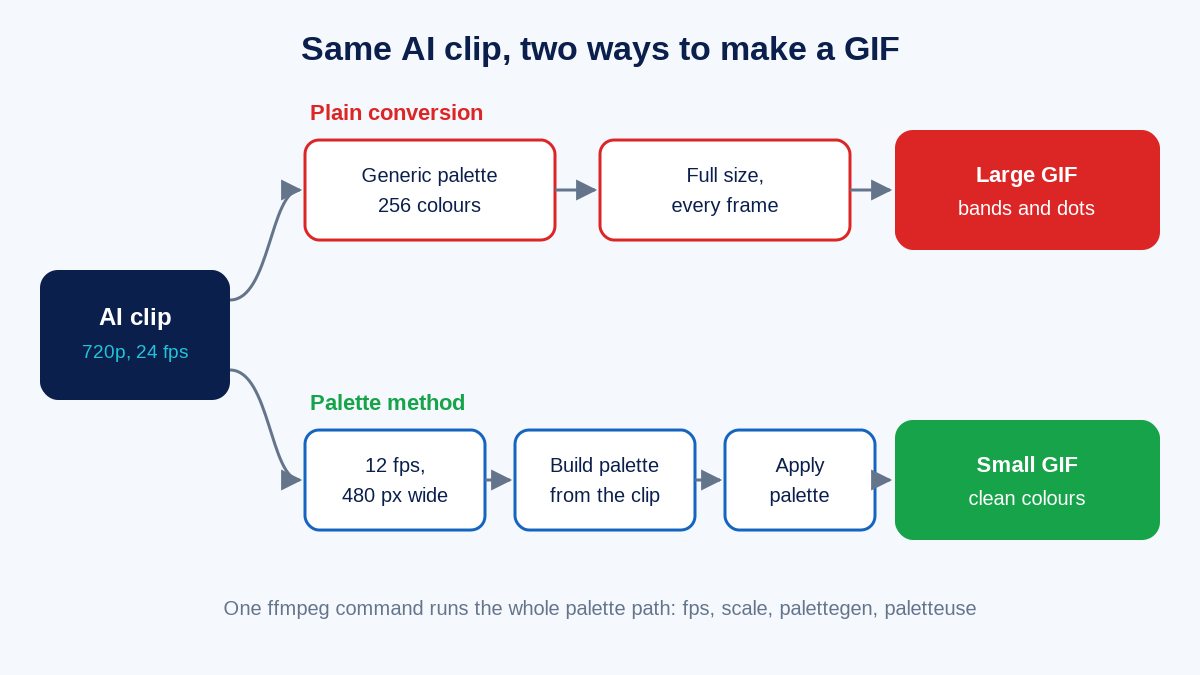
A video frame can have millions of colours. A GIF frame can have at most 256. When you run ffmpeg -i clip.mp4 out.gif with nothing else, ffmpeg squeezes every frame into a general-purpose palette that knows nothing about your clip. Smooth gradients, like a sky or soft studio light on a product, break into bands and dots. And because the GIF keeps the full size and every frame, the file gets big.
The fix has two parts: fewer pixels to store (lower frame rate and width) and better colours (a palette made from your own video).
Step 1: Pick the part you want
A GIF should be short. Two to four seconds is a good target for a preview. Find the best moment in your clip (a product turning, a character smiling, a logo landing) and note its start time. If the clip is meant to repeat, start with a clip that already loops cleanly; our guide on making an AI video loop seamlessly shows three ways.
Step 2: Make the GIF with a custom palette
This single command does everything: cuts the frame rate to 12, scales the width to 480 pixels (the height follows automatically), builds a palette from the clip and applies it.
ffmpeg -i clip.mp4 -vf "fps=12,scale=480:-1:flags=lanczos,split[a][b];[a]palettegen=stats_mode=diff[p];[b][p]paletteuse=dither=bayer:bayer_scale=5:diff_mode=rectangle" -loop 0 preview.gifWhat each part does:
fps=12keeps 12 frames per second instead of 24 or 30. Motion still looks smooth for a preview, and there are half the frames to store.scale=480:-1:flags=lanczosmakes the GIF 480 pixels wide with a sharp resize. Use-1so the height keeps the right shape.split[a][b]sends the video down two paths: one to build the palette, one to be coloured with it.palettegen=stats_mode=diffbuilds a 256-colour palette from your clip, giving more weight to the parts that move.paletteuse=dither=bayer:bayer_scale=5applies the palette with a neat, regular dither that compresses well.diff_mode=rectangleonly redraws the area that changed between frames.-loop 0makes the GIF repeat forever.
We ran the same command in both PowerShell and Git Bash on Windows and got identical files. Because the whole filter is inside double quotes, it should work the same in a macOS or Linux terminal too.
Step 3: Cut it to the best few seconds
To take only part of the clip, add -ss (start time) and -t (length) before the input. This makes a 3-second GIF starting 1 second in:
ffmpeg -ss 1 -t 3 -i clip.mp4 -vf "fps=12,scale=480:-1:flags=lanczos,split[a][b];[a]palettegen[p];[b][p]paletteuse" -loop 0 short.gifIn our test, this gave 36 frames (3 seconds × 12 fps) at 480×270, as expected.
Step 4: Make it even smaller if you need to
If the GIF is still too big for an email or an upload limit, turn these three dials, one at a time:
- Width: 360 instead of 480 pixels.
- Frame rate: 10 instead of 12 fps.
- Colours:
max_colors=128instead of the full 256.
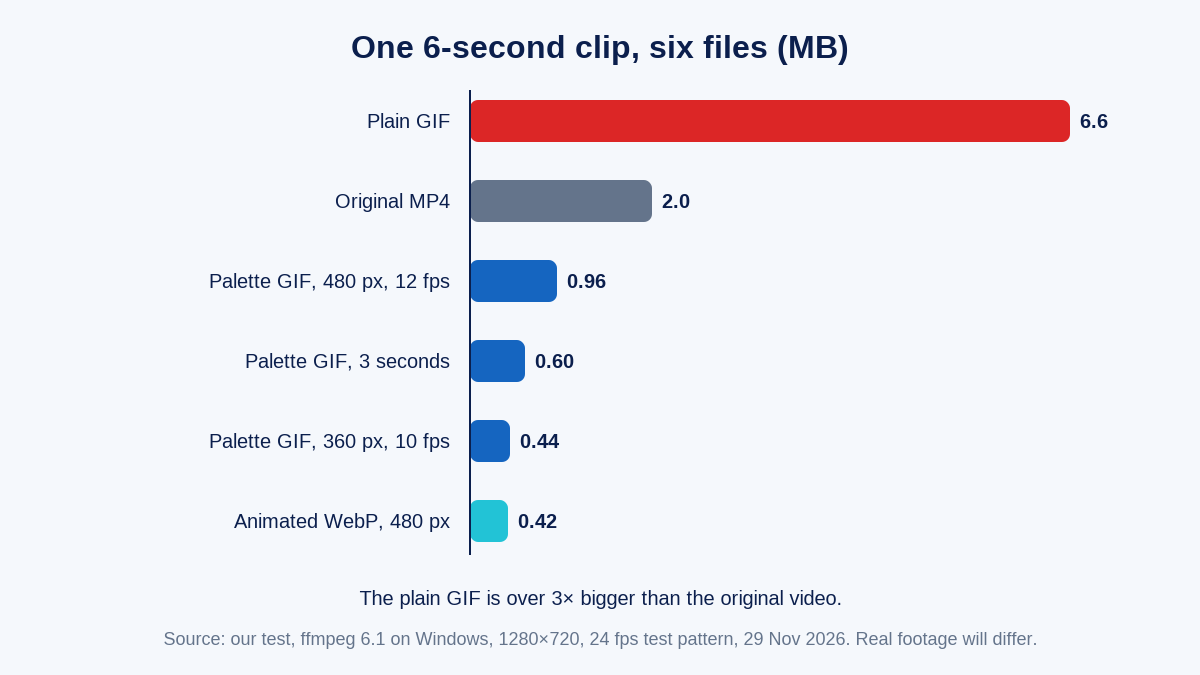
ffmpeg -i clip.mp4 -vf "fps=10,scale=360:-1:flags=lanczos,split[a][b];[a]palettegen=max_colors=128:stats_mode=diff[p];[b][p]paletteuse=dither=bayer:bayer_scale=5:diff_mode=rectangle" -loop 0 small.gifHere is what each version weighed in our test. The test clip is a busy, colourful pattern made by ffmpeg, which is harder to compress than most real footage, so your own files will differ. The order is what matters.
| Version (same 6-second clip) | File size |
|---|---|
| Original MP4, 1280×720, 24 fps | 2.0 MB |
| Plain conversion to GIF | 6.6 MB |
| Palette method, 480 px, 12 fps | 0.96 MB |
| Palette method, 3 seconds only | 0.60 MB |
| Palette method, 360 px, 10 fps, 128 colours | 0.44 MB |
| Animated WebP, 480 px, 12 fps | 0.42 MB |
Notice the first two rows: the plain GIF was more than three times bigger than the original video. That's normal. GIF is an old format and stores moving pictures far less efficiently than MP4.
When not to use a GIF
Use a GIF when you need something that plays by itself everywhere and is only a few seconds long. For anything else, there are better choices:
- Social media (Reels, TikTok, Shorts): always upload the MP4. See our guide on the right video size for Reels, TikTok and Shorts.
- Websites you control: a muted, looping MP4 or an animated WebP is usually much smaller than a GIF at the same quality. This makes an animated WebP:
ffmpeg -i clip.mp4 -vf "fps=12,scale=480:-1:flags=lanczos" -c:v libwebp -loop 0 -q:v 70 preview.webp- Email: GIFs are the safe choice, but some desktop email apps only show the first frame. Make sure the first frame works on its own (the product and the brand name should be visible).
- Client previews: if the work isn't paid for yet, put your mark on it first. Our guide on watermarking a video preview before the client pays has the ffmpeg command; run it before making the GIF.
Common problems and fixes
| Problem | Likely cause | Fix |
|---|---|---|
| Bands and dots in smooth areas | Generic palette | Use the palettegen and paletteuse command above |
| File still too big | Too wide, too long or too many frames | Cut to 2 to 4 seconds, 360 px wide, 10 fps |
| Colours flicker between frames | Palette changes, or busy dither | Try dither=bayer:bayer_scale=3, or dither=none for flat graphics |
| GIF plays once and stops | Loop not set | Add -loop 0 before the output name |
| "No such filter" or a quoting error | Quotes missing around the filter | Keep the whole -vf value inside double quotes |
If you make product ads and short AI clips for clients, a tidy GIF preview is a small skill that makes your pitch emails and portfolio pages look more professional. Making and delivering this kind of work is part of what we teach in the AI Content Creator Program.
Frequently asked questions
Why is my GIF bigger than the video?
Because GIF is a very old format. It stores each frame with simple compression and only 256 colours, while MP4 uses modern compression that only stores what changes between frames. A GIF of the same clip is often several times bigger than the MP4, which is why you should keep GIFs short, narrow and at a low frame rate.
What is the best frame rate and size for a GIF?
For a preview, 10 to 12 frames per second and 360 to 480 pixels wide is a good balance between smooth motion and file size. Go wider only if the GIF will be shown large, for example on a desktop portfolio page.
Can I make a GIF from an AI video without installing anything?
Yes, many websites convert video to GIF in the browser. Check the result the same way: keep it short and narrow, and see if smooth areas look blotchy. ffmpeg gives you full control, works offline and never uploads a client's video to someone else's server.
Should I use GIF or WebP?
If you control where it is shown (your own website) and want the smallest file, animated WebP or a muted looping MP4 is usually better. If it must play in emails, documents or tools that might not support WebP, use a GIF.
- #gif
- #ai video
- #ffmpeg
- #video to gif
- #palettegen
- #portfolio
Want to learn AI video properly?
The AI Content Creator Program takes you from your first prompt to a portfolio you can show: 27 short, focused lessons in easy Urdu, with a weekly live session and tasks our team reviews.
Enroll now