How to write an image-to-video prompt that actually moves
"Make it move" gives weak AI videos. Use five parts instead: subject motion, camera move, background motion, what stays fixed and sound, with examples you can copy.
Saqqa Academy team
15-Nov-2026 · 6 min read
In this article
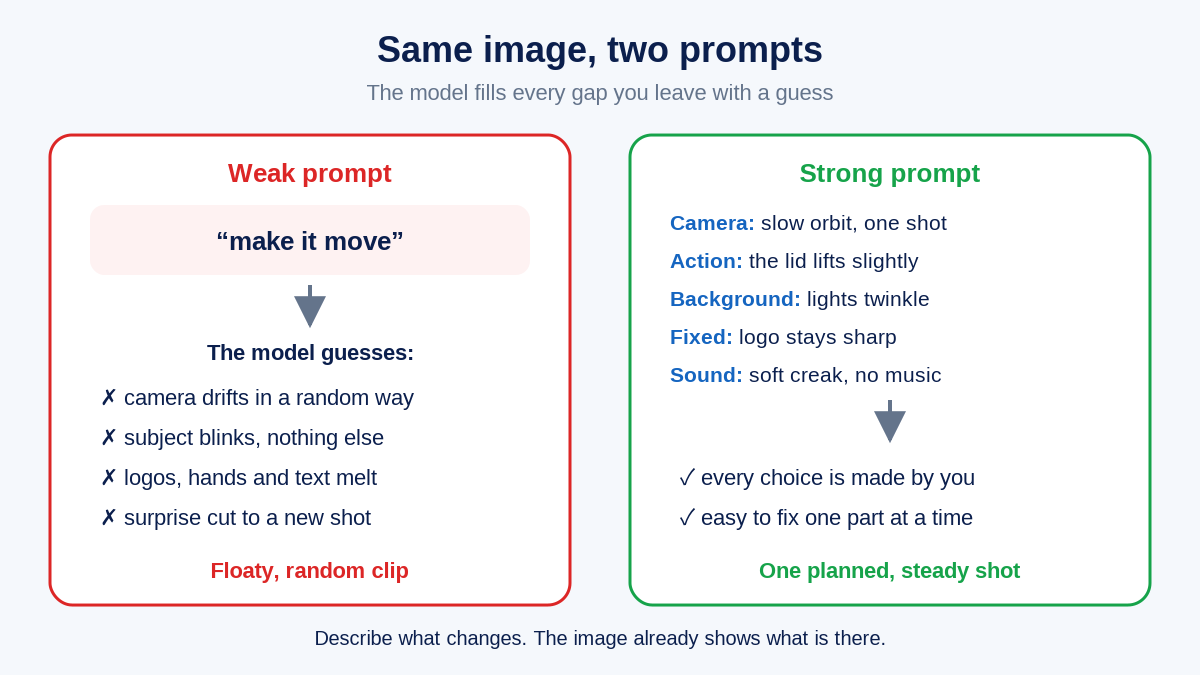
When you animate a still image with AI, the image already shows what is in the shot. Your prompt only needs to describe what changes over time. A good image-to-video prompt answers five questions: what the subject does, how the camera moves, what moves in the background, what must stay exactly the same, and what it sounds like. A prompt like "make it move" leaves every one of those choices to the model, so you usually get a random, floaty clip. Google's own guide for its video model makes the same point, saying vague prompts "produce less compelling results" than specific descriptions of camera movement, subject motion and environmental effects.
This guide works with any image-to-video tool. The examples are plain English, so you can paste them into the tool you use and adjust them. Tool-specific facts come from Google's Gemini Omni Flash guide, checked on 15 November 2026.
Why "make it move" fails
A still image is one frame. To make a video, the model has to invent every frame after it. If you don't say what should happen, it guesses, and guesses tend to look like this:
- the camera drifts slowly in a direction nobody chose
- the person blinks, smiles and does nothing else
- hands, logos and text melt as the model "moves" everything a little
- the clip cuts to a different shot halfway through
None of these mean the tool is bad. The prompt simply didn't give it a plan.
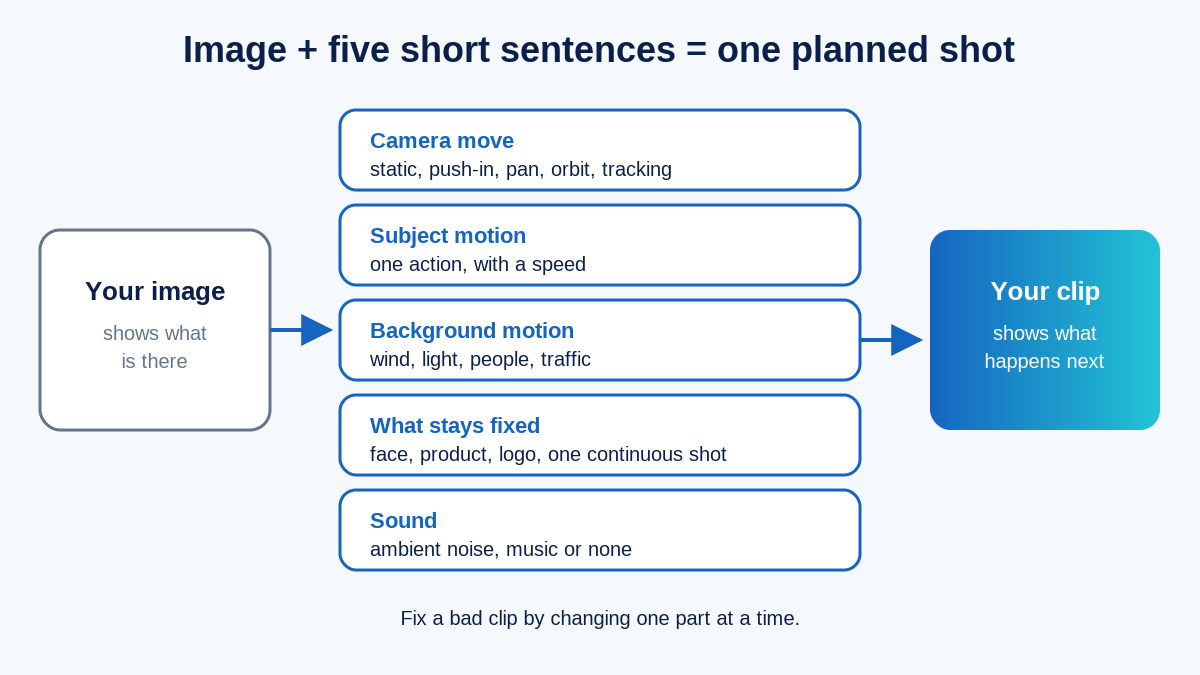
The five parts of a strong prompt
Write each part as one short sentence. You don't need fancy words. You need clear ones.
1. Subject motion: what does the main thing do?
Name one main action, with a speed. "She slowly turns her head toward the window and smiles" is better than "she moves". For products, the "action" is often a small event: the lid of a box lifts, steam rises from a cup, a bottle turns a quarter turn.
Keep it to one or two actions for a short clip. A 5- to 8-second clip can't fit a whole story.
2. Camera move: how does the viewer's eye travel?
Pick one move and say how fast it is:
| Camera move | What it does | Good for |
|---|---|---|
| Static (locked-off) | The camera doesn't move | Talking clips, showing detail |
| Slow push-in (dolly in) | Moves closer to the subject | Building focus or emotion |
| Pull-out (dolly out) | Moves away, reveals more | Showing the place around the subject |
| Pan left or right | Turns on the spot | Following movement, wide scenes |
| Orbit | Circles around the subject | Product hero shots |
| Tracking shot | Moves along with a moving subject | Walking, driving |
| Handheld | Small natural shake | Casual, "filmed on a phone" feel |
One clear move beats three mixed ones. "Slow push-in" is a complete camera instruction.
3. Background motion: what else is alive?
Small movement around the subject makes a clip feel real: leaves moving in a light wind, people walking past out of focus, dust in a sunbeam, traffic lights changing, curtains moving. Add one or two, not ten.
4. What stays fixed: protect the important parts
This is the part most beginners skip. Say plainly what must not change: "The logo on the box stays sharp and readable", "Her face and clothes stay exactly as in the image", "The camera stays in one continuous shot with no cuts".
Some tools have a separate box for negative prompts, and some don't. Google's Omni guide, for example, says negative prompts aren't supported as a separate setting and that you should write them into the prompt itself, in a sentence such as "Do not add any text." It also recommends asking for "a single continuous shot" with "no scene cuts" when you want one shot, because otherwise the model may make several.
5. Sound: if your tool makes audio
Many current video models create sound along with the picture. If yours does, describe it in a short line: "Sound: soft café noise, a cup placed on a saucer, no music, no dialogue." If you say nothing, the model chooses for you, and you may get music you didn't want.
Putting it together: two examples
A product photo of a gift box on a wooden table:
Slow orbit around the gift box, about a quarter turn, in a single continuous shot with no cuts.
The lid lifts slightly and warm light spills out of the box.
In the background, soft out-of-focus fairy lights twinkle.
The box shape, colours and the logo on the lid stay exactly as in the image, sharp and readable. Do not add any text.
Sound: a quiet wooden creak as the lid lifts, soft ambient room tone, no music.
A portrait of a young woman at a window:
Static camera, medium close-up, one continuous shot.
She slowly turns her head from the camera toward the window and gives a small, natural smile.
Outside the window, leaves move gently in the wind; light shifts softly on her face.
Her face, hair and clothes stay exactly as in the image. Natural blinking only, no extra gestures.
Sound: light street noise from outside, no music, no dialogue.
Notice the order: camera first, then action, then background, then the "stays fixed" line, then sound. Keeping the same order every time makes your prompts easier to fix.
How to fix a bad clip
Change one part at a time, then generate again. If you change everything, you can't tell what worked.
- The camera wanders: make the camera line stronger ("static camera, locked-off, no camera movement").
- The face or product changes: strengthen the "stays fixed" line and use a sharper, higher-resolution starting image. Google's guide also recommends high-resolution images.
- Too much happens: remove actions until one remains.
- Nothing happens: the action is too vague. Replace "moves" with a verb and a direction: "turns left", "lifts", "pours", "walks toward the camera".
- It cuts to another shot: add "single continuous shot, no scene cuts".
Tip: keep a simple text file of prompts that worked, with the image they were used on. After a few weeks you'll have your own tested library of camera moves and "stays fixed" lines.
If your images themselves look artificial, fix that first. A video can't be more realistic than its starting frame. Our guide on why AI images look fake covers the usual causes, and keeping a character consistent helps when the same person appears in several clips.
Frequently asked questions
How long should an image-to-video prompt be?
Usually four to six short sentences, one for each part. Long paragraphs full of adjectives tend to confuse the model more than they help. If a sentence doesn't describe motion, the camera, what stays fixed or sound, it's probably already in the image.
Do I need to describe what's in the image?
Mostly no. The image already shows it. Mention the subject only to tell the model what moves ("the woman turns her head"). Spend your words on change, not on repeating the picture.
What camera move should a beginner start with?
A static shot or a slow push-in. Both are easy for models to get right and look professional. Try orbits and tracking shots once your basic clips come out steady.
Why does the logo or text on my product melt?
Fine details are hard to keep while the frame changes. Use a sharp image, keep the camera move small, and add a line such as "the logo stays sharp and readable, do not change it". For important brand text, many editors add the logo back on top in editing instead of relying on the model.
- #image to video
- #ai video prompts
- #camera movement
- #ai video
- #prompting
Want to learn AI video properly?
The AI Content Creator Program takes you from your first prompt to a portfolio you can show: 27 short, focused lessons in easy Urdu, with a weekly live session and tasks our team reviews.
Enroll now