How to make an AI video loop seamlessly (3 ways, with tested ffmpeg commands)
Make a short AI clip play on repeat with no visible jump. Use the same first and last frame, a boomerang, or a crossfade loop, with ffmpeg commands we tested.
Saqqa Academy team
26-Nov-2026 · 6 min read
In this article
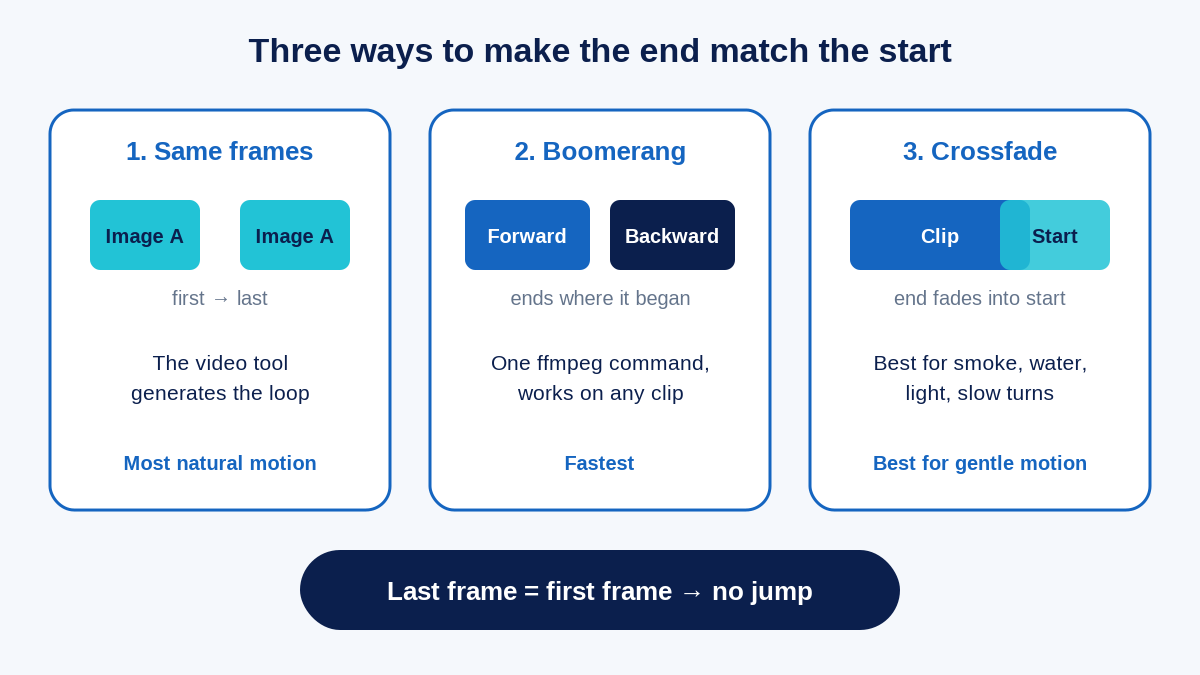
To make an AI video loop seamlessly, the last frame has to flow straight back into the first frame. There are three reliable ways to get there: generate the loop by giving the video tool the same image as the first and the last frame, turn the clip into a boomerang (it plays forward, then backward), or make a crossfade loop that blends the end of the clip into its start. The first gives the most natural motion, the boomerang is the fastest and works on any clip, and the crossfade is best for gentle motion like smoke, water, light or a slowly turning product. The free tool ffmpeg can do the last two in one command each.
Loops are useful everywhere: a product turning on a website banner, a moving background behind text, a short reel that plays again without a visible jump, or a "living photo" for a menu screen. The ffmpeg commands below were tested on Windows with ffmpeg 6.1 on 26 November 2026, on a 6-second, 24 fps test clip. The workflow is our own method, not an official guide from any video tool.
Why most AI clips don’t loop
A video model makes a clip that starts somewhere and ends somewhere else. When the player jumps from the last frame back to the first, the picture "snaps": the camera position, the light or the subject's pose is suddenly different. Your eye catches that jump at once, even if the clip itself is perfect.
So every loop method does the same job in a different way: it makes the end of the clip match the start.
Method 1: Use the same first and last frame
If your video tool lets you set both a start image and an end image, give it the same image for both. The model then has to come back to where it started, so the loop is built into the clip. In Google Flow this is the Frames to Video mode; our guide on using first and last frames in Google Flow shows the setup step by step.
Write a prompt that describes a motion which naturally returns to its start:
The gift box sits on the wooden table. Soft morning light moves slowly
across the box and back again. Steam rises gently from the tea cup behind it.
Camera holds still. The box, logo and table stay exactly the same.
Good loop motions are ones that come and go: light that drifts and returns, a slow sway, breathing, steam, leaves moving in a breeze, a product that turns a full circle. Avoid motions that clearly travel somewhere, like a person walking out of frame. They can't return in a believable way.
This method gives the most natural result because the motion only goes forward. It also costs a generation, and the model may not land exactly on the end frame every time, so check the joint with the steps at the end of this post.
Method 2: Make a boomerang
A boomerang plays the clip forward and then backward, so the last frame is the first frame again. It works on any clip, needs no new generation, and takes one command:
ffmpeg -i clip.mp4 -filter_complex "[0:v]split[a][b];[b]reverse[r];[a][r]concat=n=2:v=1:a=0[out]" -map "[out]" -an -c:v libx264 -crf 18 -pix_fmt yuv420p boomerang.mp4What each part does:
split[a][b]makes two copies of the video.reverseplays the second copy backward.concat=n=2:v=1:a=0joins forward and backward, video only.-androps the sound, because reversed audio sounds strange.
Our 6-second test clip became a 12-second boomerang. Two limits to know: the reverse filter holds the whole clip in memory, so use it on short clips (a few seconds), and backward motion looks wrong for some things. Smoke, a turning product or a light sweep look fine in reverse. Pouring water, falling objects or someone walking clearly don't.
Method 3: Make a crossfade loop
A crossfade loop cuts a short piece off the start of the clip and fades the end of the clip into it. Because that piece comes from just before the new starting point, the last frame flows straight into the first one.
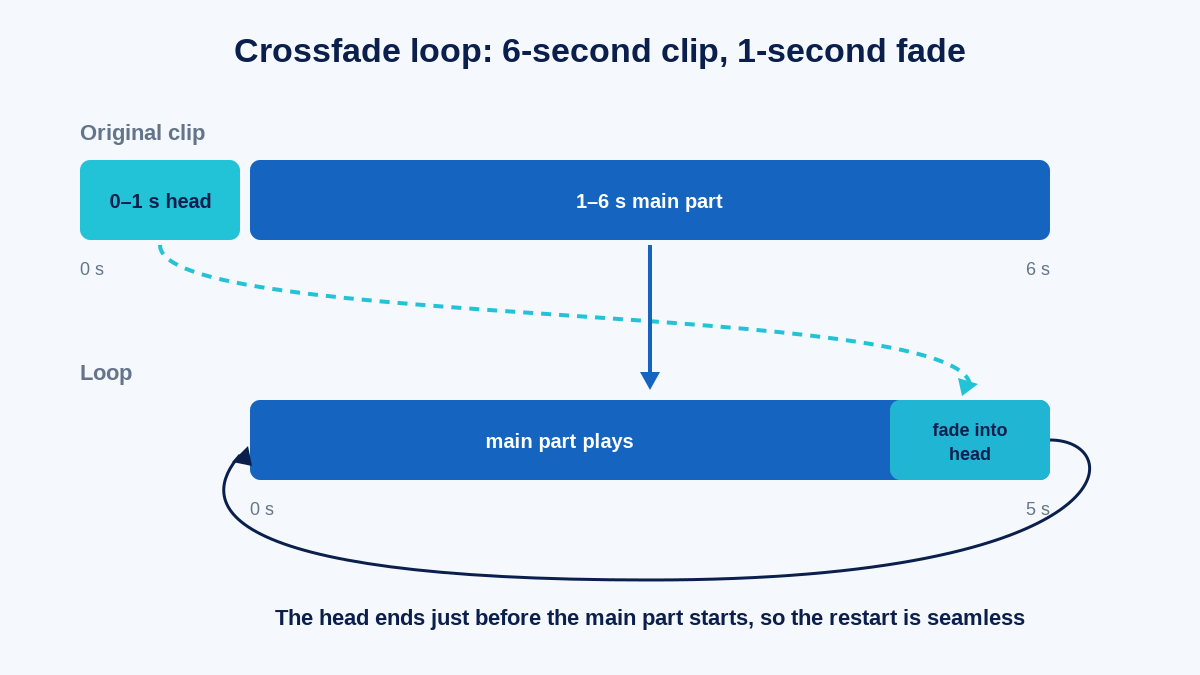
For a 6-second clip and a 1-second fade:
ffmpeg -i clip.mp4 -filter_complex "[0:v]split[body][tail];[body]trim=start=1,setpts=PTS-STARTPTS[main];[tail]trim=end=1,setpts=PTS-STARTPTS[head];[main][head]xfade=transition=fade:duration=1:offset=4[out]" -map "[out]" -an -c:v libx264 -crf 18 -pix_fmt yuv420p loop.mp4To use it on your own clip, change three numbers. With a clip that lasts D seconds and a fade of F seconds:
trim=start=Fandtrim=end=Fuse the fade length,duration=Fis the fade length too,offsetis D − 2F (here 6 − 2 = 4).
Find the clip length with ffprobe, which comes with ffmpeg:
ffprobe -v error -show_entries format=duration -of default=nw=1:nk=1 clip.mp4Our test produced a 5-second loop. We checked the joint by comparing the loop's last frame with the original frame just before the 1-second mark, and its first frame with the original at 1 second: both pairs matched apart from normal compression noise.
The crossfade works best for gentle, flowing motion. With a fast movement, you can see two images overlap during the fade. If that happens, try a shorter fade (0.5 seconds) or use Method 1.
Check the joint before you use it
Play the loop a few times in a row. Most players can loop a file, or you can make a longer test copy that repeats the loop three times without re-encoding:
ffmpeg -stream_loop 2 -i loop.mp4 -c copy loop-x3.mp4Our 5-second loop became a 15-second file. Watch the moment it restarts and look for:
- a jump in camera position or light,
- a logo, text or face that changes shape at the joint,
- a ghost image during the fade,
- motion that suddenly changes direction (fine in a boomerang, odd in other loops).
If you see morphing elsewhere in the clip, fix that first; our post on why AI video looks fake shows a frame-by-frame check with ffmpeg.
Where to use loops
- Website or store banners: a product that turns or catches the light. Keep the file small and silent so the page loads fast.
- Reels and TikTok: these apps replay short videos automatically, so a clean loop makes people watch twice without noticing the restart. Make it vertical first; see the right size for Reels, TikTok and Shorts.
- Backgrounds behind text: slow light, clouds or water under a headline.
- Client extras: a looping version of a product shot is a cheap add-on to offer in a product ad package.
Making clean, usable clips like these for real products is part of what we teach in the AI Content Creator Program, where each module ends with a practical task.
Frequently asked questions
Can every AI video tool use the same image for the first and last frame?
Not every tool has a first-and-last-frame option, and the ones that do don't always land exactly on the end frame. Check the result at the joint, and if it doesn't match, use a boomerang or crossfade on the clip you have.
Why does my boomerang look strange?
Some motions only make sense going forward: falling, pouring, walking, splashing. In reverse they look wrong. Use the boomerang for motion that can go either way, such as turning, swaying, light sweeps or steam.
How long should a looping video be?
Long enough that the motion feels calm, short enough that the file stays small. For banners and backgrounds, a few seconds is usually enough. For reels, the loop is the whole video, so it should still have one clear thing to look at.
Does the loop keep its sound?
The commands above drop the sound on purpose, because reversed or cut audio rarely loops cleanly. Add music or ambience in your editor afterwards, ideally a track that is made to loop.
- #ai video
- #loop
- #seamless loop
- #ffmpeg
- #google flow
- #product video
- #background video
Want to learn AI video properly?
The AI Content Creator Program takes you from your first prompt to a portfolio you can show: 27 short, focused lessons in easy Urdu, with a weekly live session and tasks our team reviews.
Enroll now