How to fix misspelled or garbled text in AI product images
Why AI image tools misspell labels and logos, the prompt tricks that help, and the reliable fix for product ads: keep text out of the image and add it yourself.
Saqqa Academy team
19-Nov-2026 · 7 min read
In this article
To fix misspelled text in an AI product image, don't fight the generator for perfect letters. The reliable method is to generate the image with no text (or with your real product photo as the reference), then add the brand name, price and offer yourself in an editor such as Canva, CapCut or Photoshop. If you need the text inside the image, keep it short, put the exact words in quote marks, name the font style, and then fix any single wrong word with an edit prompt or inpainting. Always proofread letter by letter before you post.
Google says the same thing about its own image model. Its Nano Banana Pro prompting tips warn that accurate spelling "may not work perfectly" and that small text and fine details may not render well (checked 19 November 2026). So treat AI text as a draft, not a final label.
Why AI image tools get letters wrong
An image model doesn't type letters the way a word processor does. It paints pixels that look like the images it learned from. A word is just another shape to it, and every extra letter is one more chance to get a shape slightly wrong. That's why you see the classic problems:
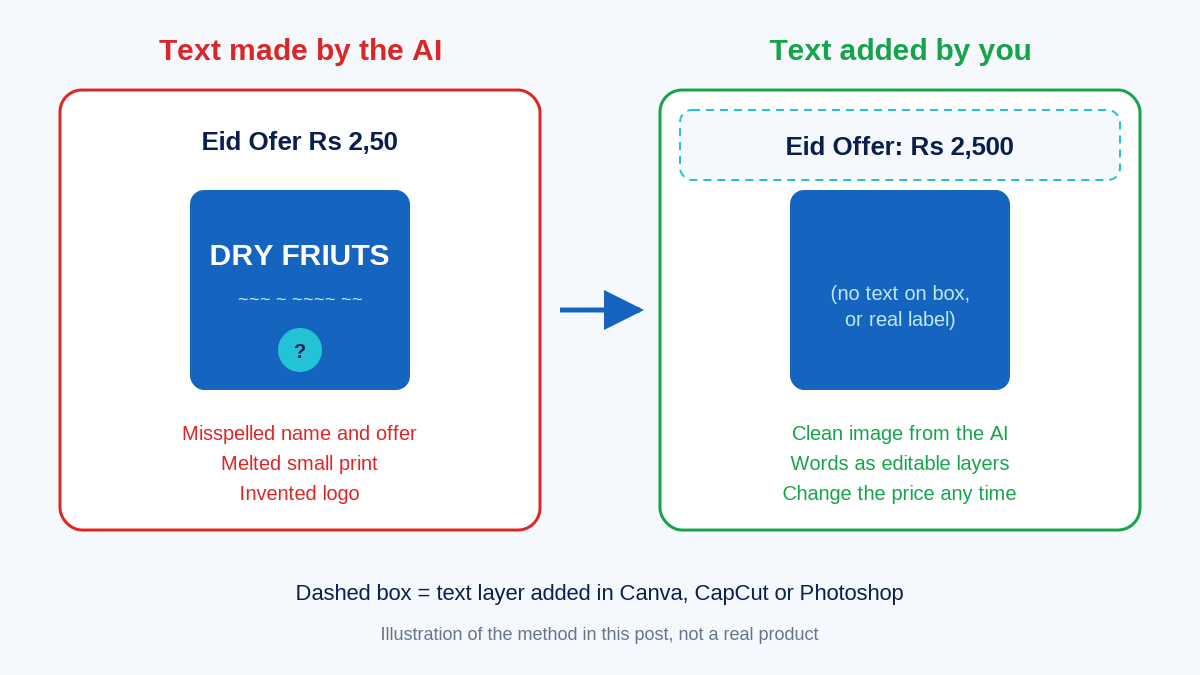
- Swapped or extra letters: "Dry Friuts", "Premiumm".
- Melted text on curved surfaces like jars, cans and boxes.
- Tiny text turned into scribbles: ingredients, weight, small print.
- Fake logos: the model invents something that looks like a brand mark but isn't yours.
Short, big, flat text (one or two words on a sign) usually comes out fine. Long sentences, small print and text that wraps around a curved product are where it breaks. If your images have other "AI look" problems too, such as plastic skin or perfect symmetry, see our guide on why AI images look fake and how to fix them.
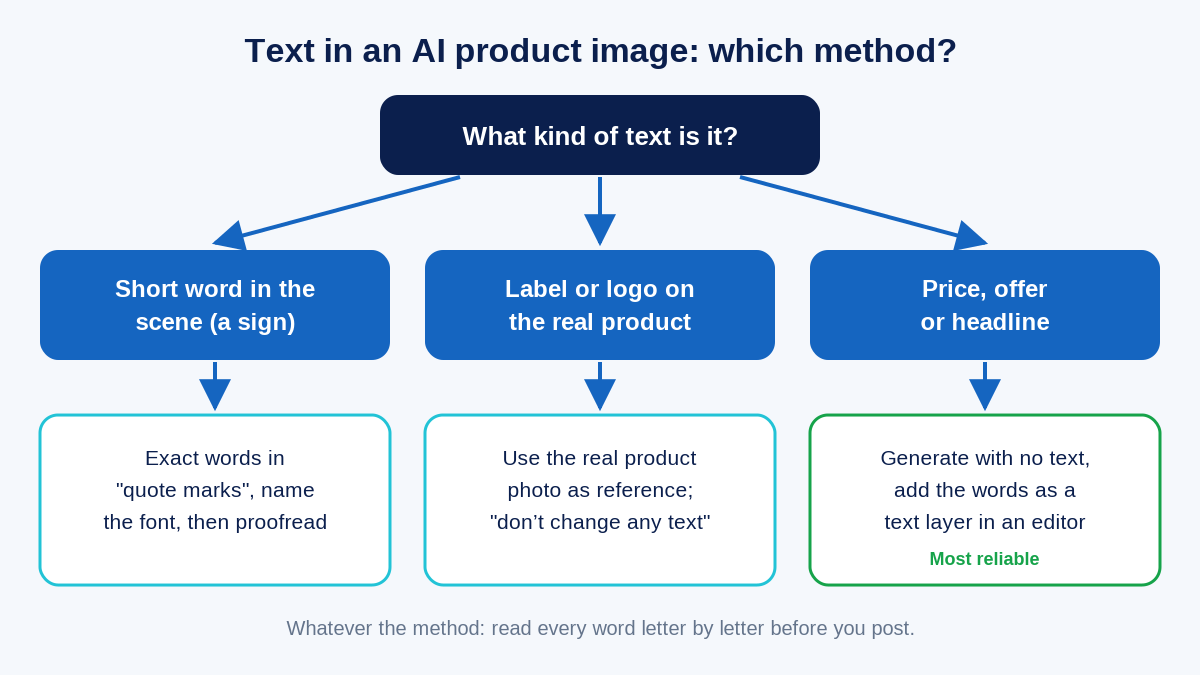
Method 1: Leave text out, add it in the edit (most reliable)
This is what we recommend for any ad that will run with your money behind it.
- Ask for a clean image. Add a line to the prompt such as: "No text, no letters, no logos anywhere in the image. Leave clear empty space in the top third for a headline."
- Generate a few versions and pick the one with the best light and composition. Don't worry about the empty space looking plain; that's where your text goes.
- Add your text as a real text layer in Canva, CapCut, Photoshop or any editor. Now you control the spelling, font, size and colour, and you can change the price next week without making a new image.
- Export in the size your platform needs. Our guide to AI video sizes for Reels, TikTok and Shorts lists them.
A second advantage: one clean image becomes many ads. The same background can carry "Eid offer", "Free delivery" or "New flavour" without generating anything again.
Method 2: Use the real product photo for labels and logos
If the text is printed on the product itself, such as a brand name on a box or a label on a bottle, don't ask the model to invent it. Give it a clear photo of the real product as a reference image and ask it to keep the product exactly as it is.
A prompt that works well for this:
Use the product in the reference image exactly as it is.
Do not change, redraw or translate any text, logo or label on it.
Place it on a dark wooden table beside a window, soft morning light,
shallow depth of field, premium product photo, vertical 9:16.
Then zoom in and check the label. Models often keep a big logo well but blur the small print. If only the small print is wrong, you can cover it with a clean crop of the real label in your editor. Our walkthrough on making a product ad from one photo shows the full process from a phone picture to a finished ad.
Method 3: When the text must be inside the image
Sometimes you want text that is part of the scene, like a shop sign, a neon word or a chalkboard. Google's developer guide for its image model recommends being clear about the exact text, describing the font style and setting the overall design (Google Developers Blog, checked 19 November 2026). In practice:
- Put the exact words in quote marks:
a wooden sign that says "OPEN". - Keep it short. One to three words is far safer than a full sentence.
- Describe the lettering: "bold white sans-serif capital letters".
- Say where it goes: "centred on the sign, large and clearly readable".
- Spell unusual names carefully in the prompt, and avoid putting two different texts in one image.
Example prompt:
A small roadside tea stall at dusk, warm string lights,
a hand-painted wooden sign above the counter that says "CHAI"
in bold white capital letters, centred and clearly readable.
Photo, 35mm lens, natural colours.
Fixing one wrong word without starting over
If the image is perfect except for one word, don't regenerate everything. Most image tools now let you edit an existing picture with a short instruction. Be direct:
Change only the word on the sign from "CHIA" to "CHAI".
Keep everything else exactly the same.
If the edit changes other parts of the picture, use inpainting (select only the word with the brush or lasso tool) so the rest stays untouched. If the tool still can't get it right after two or three tries, switch to Method 1: paint over the area with a plain colour in your editor and add the word as a text layer.
Text in AI video is even harder
When you turn an image into a video, the model redraws every frame, and letters that looked fine in the still can wobble, morph or swap as the camera moves. Two habits help:
- Animate the clean, text-free image, then add titles, prices and captions in your video editor. CapCut's text tools and auto captions stay sharp because they aren't generated.
- Keep the camera move gentle when a real label must stay readable, for example a slow push-in instead of a fast orbit. Our guide to writing image-to-video prompts explains how to ask for small, controlled movement.
A quick proofreading checklist
Before any AI image goes into an ad or a client's hands:
- Read every word out loud, letter by letter. Your brain auto-corrects when you skim.
- Zoom to 100% and check small print, weights and prices.
- Compare the logo with the real one side by side.
- Ask someone else to read it. Fresh eyes catch "Friuts".
- For client work, send the client a still for approval before you animate it.
These are the same skills we practise on real product ads in the AI Content Creator Program, where every module ends with a practical task that gets reviewed.
Frequently asked questions
Which AI image tool is best at spelling?
Newer models handle short text far better than older ones, and Google, OpenAI and others all advertise improved text rendering. But even Google's own guidance says spelling may not be perfect, so no tool removes the need to proofread. For ads, adding text yourself is still the safest route whatever tool you use.
Why does the AI keep misspelling a word even when I spell it correctly in the prompt?
The model draws letter shapes rather than typing them, so a correct prompt doesn't guarantee correct letters. Shorter text, quote marks and a clear font description help. If one word keeps failing, edit just that word, or remove it and add it as a text layer.
Can I ask the AI to translate the text on my product into Urdu or another language?
Google's tips show its model translating text inside an image, but they also warn that multilingual text can contain grammar mistakes. For a real product, have a fluent speaker check the result, or add the translated text yourself in an editor so you control it.
Is it okay to sell product images with AI-generated text?
The text itself isn't the problem; wrong text is. A misspelled brand name or wrong price in an ad looks careless and can mislead buyers. Proofread, get the client's approval, and follow the platform's rules on labelling AI content.
- #ai images
- #product ads
- #text in images
- #nano banana
- #editing
- #labels
Want to learn AI video properly?
The AI Content Creator Program takes you from your first prompt to a portfolio you can show: 27 short, focused lessons in easy Urdu, with a weekly live session and tasks our team reviews.
Enroll now