How to save the last frame of a video as a full-quality image (or any frame you choose)
A screenshot of the player is blurry and the wrong size. Use one free ffmpeg command to save the exact last frame, a frame at any time, or every frame, at full quality.
Saqqa Academy team
29-Nov-2026 · 6 min read
In this article
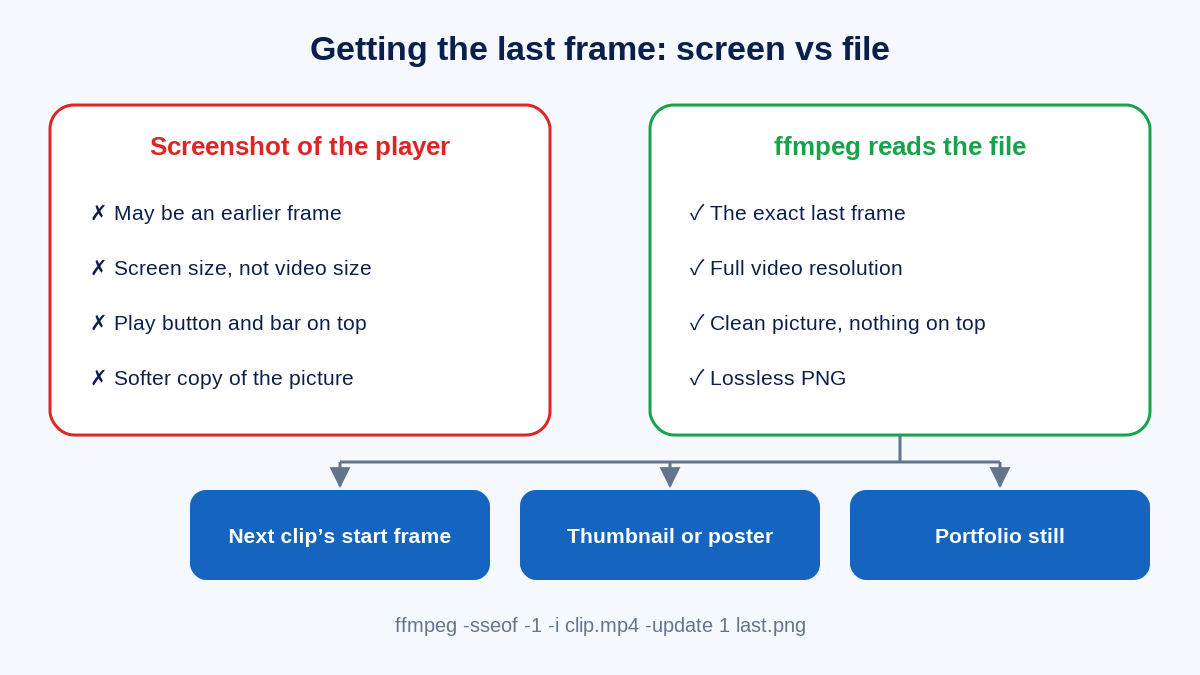
To save the last frame of a video as a full-quality image, use the free tool ffmpeg: ffmpeg -sseof -1 -i clip.mp4 -update 1 last.png. It reads only the final second of the clip, writes every frame to the same file, and the frame left at the end is the real last frame, at the video's full resolution. To grab a frame at a set time, use ffmpeg -ss 2.5 -i clip.mp4 -frames:v 1 frame.png. This is much better than a screenshot of a paused player, which often captures a slightly earlier frame, the player's controls, or a smaller, softer copy of the picture.
Why this matters for AI video: the last frame of one clip is the start frame of the next clip when you build a longer scene, and a clean still from your video makes a good thumbnail, poster image or portfolio picture. If the start frame is soft or a few frames off, the join between clips shows.
Every command below was tested on Windows with ffmpeg 6.1 on 29 November 2026, in both PowerShell and Git Bash, on a 6-second, 1280×720, 24 fps test clip (144 frames). We checked the results by comparing files: the "last frame" command produced a file identical to frame 144 picked out by number. ffmpeg is free from the official download page; the options used are described in the official ffmpeg documentation.
Why a screenshot isn't good enough
When you pause a video player and take a screenshot, three things can go wrong:
- Wrong frame. Players often stop slightly before the true end, or show a frame that is still being decoded.
- Wrong size. The screenshot is the size the player shows on your screen, not the video's real resolution.
- Extra stuff. Play buttons, progress bars and subtitles get into the picture.
ffmpeg reads the frame straight from the file, so you get exactly that frame, at full size, with nothing on top.
Step 1: Save the exact last frame
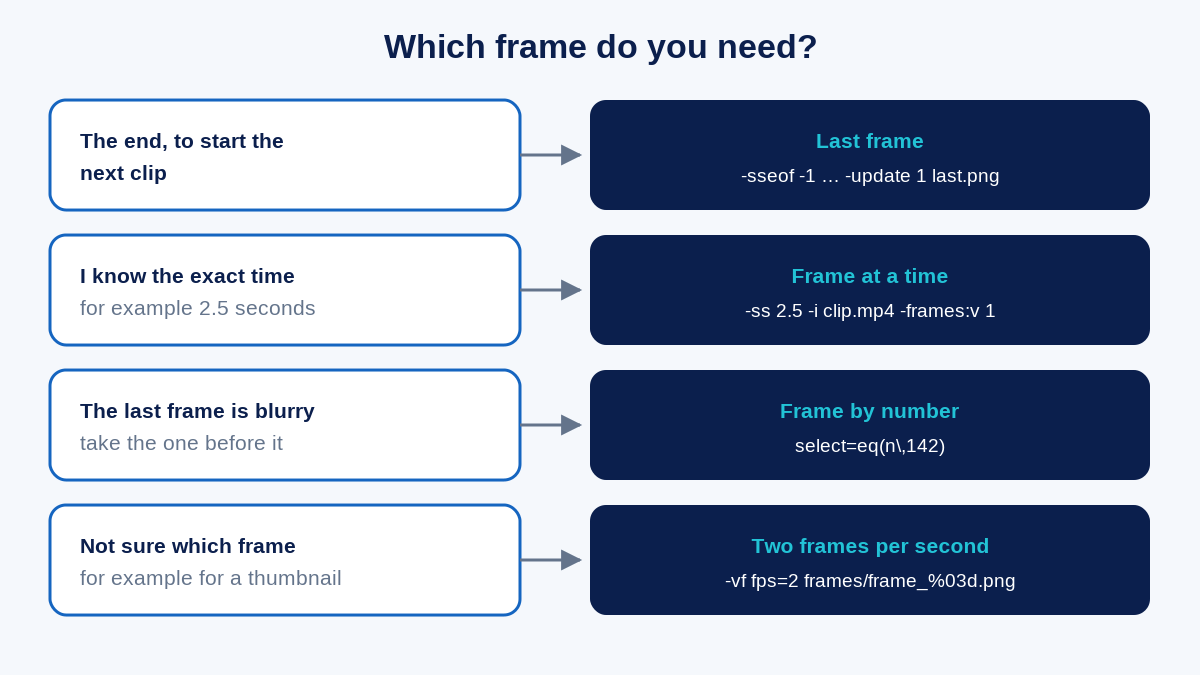
ffmpeg -sseof -1 -i clip.mp4 -update 1 last.pngWhat each part does:
-sseof -1starts reading 1 second before the end of the file, so ffmpeg doesn't decode the whole clip.-update 1keeps writing over the same image file, one frame after another. When the clip ends, the file holds the last frame.last.pngsaves a PNG, which is lossless: no quality is lost.
If you need a JPG instead (smaller, good for a thumbnail), add a quality setting. -q:v 2 is very high quality (lower numbers mean better quality):
ffmpeg -sseof -1 -i clip.mp4 -update 1 -q:v 2 last.jpgIn our test, the PNG was 182 KB and the JPG 69 KB. Use the PNG when the frame will go back into an AI video tool, because every round of JPG compression loses a little detail.
Step 2: Save a frame at a set time
To grab the frame at 2.5 seconds:
ffmpeg -ss 2.5 -i clip.mp4 -frames:v 1 frame.png-ss 2.5before-ijumps to that time. You can also write it as00:00:02.5.-frames:v 1stops after one frame.
On our 24 fps test clip, 2.5 seconds gave frame number 60 (2.5 × 24), which we confirmed by also picking frame 60 by number (next step) and comparing the two files.
Step 3: Save a frame by its number
Sometimes the last frame is blurry because of motion, and you want the clean one just before it. Pick frames by number with the select filter. Numbers start at 0, so on a 144-frame clip the last one is 143:
ffmpeg -i clip.mp4 -vf "select=eq(n\,142)" -fps_mode vfr -frames:v 1 frame142.pngThe \, is needed because a plain comma has a special meaning inside ffmpeg filters. To find how many frames a clip has, ask ffprobe (it comes with ffmpeg):
ffprobe -v error -count_frames -select_streams v:0 -show_entries stream=nb_read_frames -of csv=p=0 clip.mp4For our test clip this printed 144.
Step 4: Save a frame every half second, then choose
When you don't know which frame you want (for a thumbnail, say), save several and look at them side by side:
mkdir frames
ffmpeg -i clip.mp4 -vf fps=2 frames/frame_%03d.png
fps=2 saves two frames per second; %03d numbers the files frame_001.png, frame_002.png and so on. Our 6-second clip gave 12 images.
Using the frame in your next step
Continue a clip. Upload the PNG as the start frame of the next clip in your video tool. Our guide on making a longer AI video in Google Flow shows the whole chain, and first and last frames in Google Flow explains how start and end images guide the motion.
Make a thumbnail. Choose a frame where the subject is sharp and the face or product is clear, then add text in an editor. Our guide on making a YouTube thumbnail with AI covers readable text.
Print or show it large. A frame from a 720p video is only 1280×720 pixels. If you need it bigger, see how to upscale an AI image for free, and check the result closely.
Small, exact steps like this are what make AI clips join up smoothly. Building whole product ads from start frames, clips and edits is what we teach in the AI Content Creator Program.
Common problems and fixes
| Problem | Likely cause | Fix |
|---|---|---|
| The image is small or soft | It was a screenshot, or the video itself is low resolution | Use ffmpeg, and download the highest-quality version of the clip first |
| The last frame is blurry | Motion at the very end | Pick the frame before it by number (Step 3) |
"Invalid argument" with select | Comma not escaped, or quotes missing | Write select=eq(n\,142) inside double quotes |
| The colours look a bit different | JPG compression, or the viewer's colour handling | Save as PNG and compare in the same viewer |
Frequently asked questions
Does saving a frame as PNG lose quality?
No. PNG is lossless, so the image keeps exactly what ffmpeg decoded from the video. The video itself was already compressed, so the frame can't be better than the clip it came from, but saving it won't make it worse.
How do I get the last frame on a phone?
Some phone editors can export a single frame as an image; look for an option like "export frame" or "save frame". If yours doesn't, move the clip to a computer and use the ffmpeg command above for an exact, full-size frame.
Why is my video’s last frame black?
Some clips end with a fade to black, or the exported file has a black frame added at the end. Save the frames from the last second with the "every half second" method, or use a higher rate such as fps=10, and pick the last frame that still shows your scene.
Can I use this on any video, not just AI clips?
Yes. ffmpeg reads almost every common video format, including MP4, MOV and WebM. Only use frames from videos you made or have the right to use.
- #last frame
- #extract frame
- #ffmpeg
- #ai video
- #google flow
- #thumbnail
- #still image
Want to learn AI video properly?
The AI Content Creator Program takes you from your first prompt to a portfolio you can show: 27 short, focused lessons in easy Urdu, with a weekly live session and tasks our team reviews.
Enroll now