How to make a longer AI video in Google Flow (Extend, last frames and Scenebuilder)
AI video tools make short clips. Here is how to turn them into a longer scene in Google Flow with Extend, a saved last frame, and Scenebuilder to join and trim.
Saqqa Academy team
21-Nov-2026 · 6 min read
In this article
AI video models make short clips, so a longer video is always several clips joined together. In Google Flow there are two ways to continue a clip. Extend continues a clip from where it ends, but it needs a paid Google AI plan (Plus, Pro or Ultra) and the Omni Flash 1.2 model. On any plan, you can save the last frame of a clip and use it as the start frame of the next one. Then use Scenebuilder to put the clips in order, trim the joins and download the scene as one video.
Everything about Flow below comes from Google's help page Edit videos & build scenes in Flow and the models and supported features page, both checked on 21 November 2026. Flow changes often, so check those pages if a button has moved.
Plan the scene before you generate
Credits go fast when you extend without a plan. Write the scene as a short list of beats, one per clip, before you start:
Scene: gift box reveal, about 30 seconds
Clip 1: hands place the hexagon box on a wooden table, morning light
Clip 2: slow push-in as the lid lifts, dry fruits visible
Clip 3: close-up of almonds and pistachios, steam from tea behind
Clip 4: pull back, box and tea cup together, space for the logo
Each beat should be one simple action. Our guide to planning an AI product ad with a shot list goes deeper on this, and how to write an image-to-video prompt covers what to write for each clip.
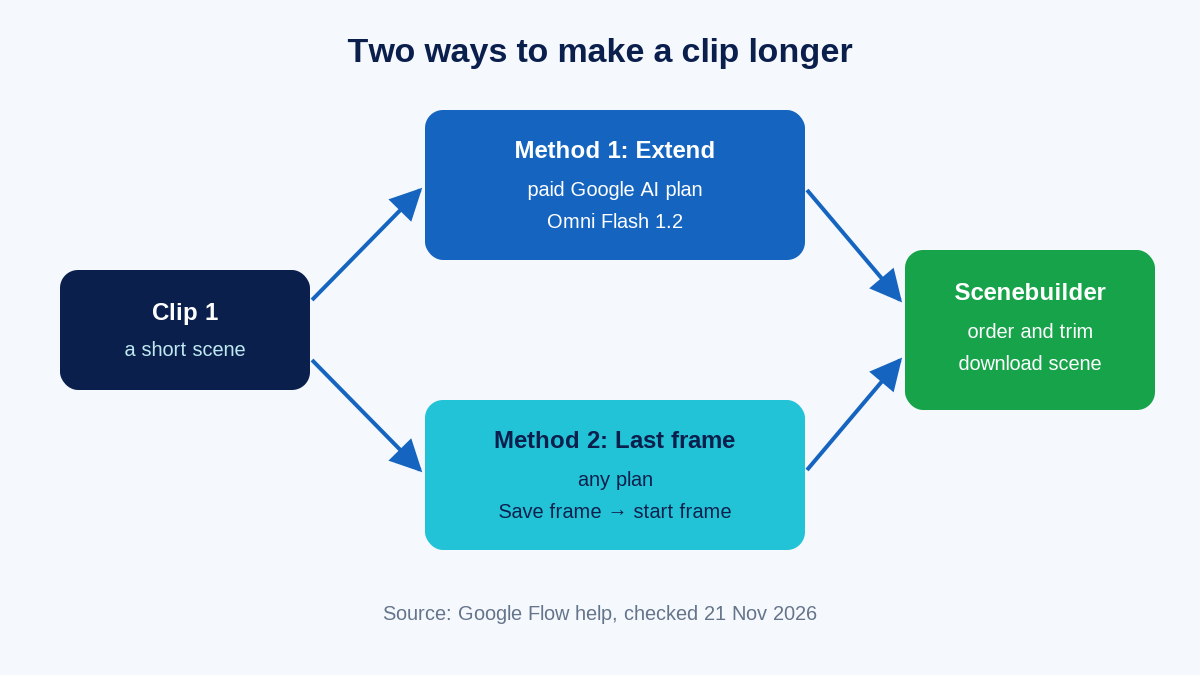
Method 1: Extend a clip (paid plans)
According to Google's help page, Extend is only available to Google AI Plus, Pro and Ultra subscribers using the Omni Flash 1.2 model. The older Veo Extend feature has retired; our post on which Flow model to use now explains that change.
- Open your project in Flow.
- Click the clip you want to continue.
- At the bottom, click Extend.
- Choose how long the extension should be.
- In the prompt box, describe what happens next, not the whole scene again. For example: "The lid lifts slowly and the camera pushes in on the dry fruits."
- Optionally add up to three image references, such as your character or product, to keep them consistent.
- Click Generate.
Two things to know. First, the help page says you can't use the insert, remove or camera edit modes on an extended clip, so make those edits before you extend, or on a separate clip. Second, describe only the next beat. A prompt that repeats the opening action often makes the clip restart or loop.
Method 2: Start the next clip from the last frame (any plan)
This is the classic method and it works with every model that supports start frames:
- Play your first clip and pause on its last frame (or a clean frame near the end, if the last one is blurry).
- Hover over the video and click Save frame. Flow saves it so you can use it as an ingredient, a start frame or an end frame.
- Create a new clip with Frames to Video and set the saved frame as the start frame.
- Write the prompt for the next beat only.
- Repeat for each beat.
Because each new clip begins exactly where the last one ended, the cut between them is almost invisible. If you also know how the clip should end, set an end frame too; our guide to first and last frames in Google Flow explains that technique, including the clip lengths each model supports.
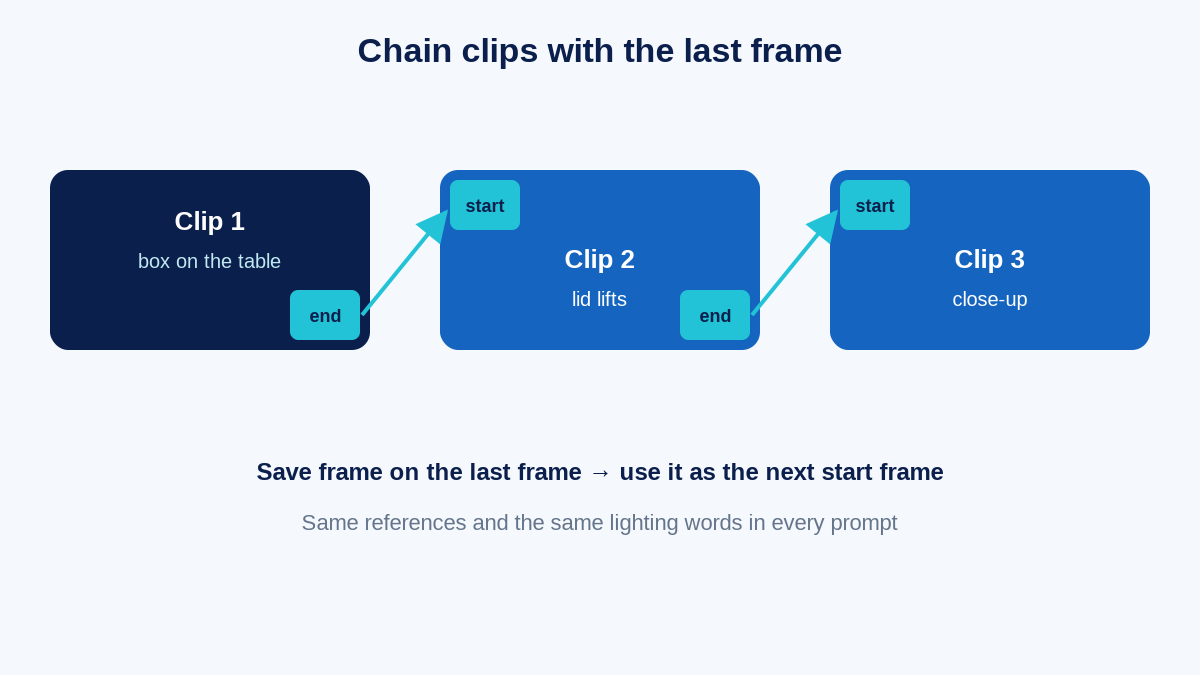
Keep the look consistent across clips
Long videos break when the character's face, the product or the light drifts between clips. To keep them steady:
- Use the same reference images (character, product, place) in every clip.
- Keep the same words for lighting and style in every prompt, for example "soft morning window light, warm tones".
- Avoid big camera moves right at the end of a clip; a calm last frame is a better starting point.
Our post on keeping an AI character consistent across images has more tips that also apply to video.
Step 3: Join, trim and download in Scenebuilder
When your clips are ready, put them together in Flow's Scenebuilder:
- Hover over a clip, click More, then Add to Scene. Do this for each clip.
- Drag the clips into the right order.
- Use the handles at the start and end of each clip to trim it. Cut away the first few frames of each new clip if they repeat the end of the previous one, and remove any wobbly frames at the end.
- Preview the whole scene from start to finish.
- Download the scene.
If you want to use an older version of a clip, open the History panel, hover over the version and click Save to Project. Only saved versions can be added to Scenebuilder.
Finishing touches outside Flow
Scenebuilder handles order and trimming. For voice, music, captions and the final export, most creators move the downloaded scene into an editor such as CapCut. Our guides on adding an AI voiceover in CapCut and CapCut auto captions cover those steps.
Building a full product ad from many short clips, from shot list to final edit, is one of the core projects in our AI Content Creator Program.
Common problems and fixes
| Problem | Likely cause | Fix |
|---|---|---|
| The extension restarts the action | The prompt repeats the whole scene | Describe only what happens next |
| A visible jump between clips | The next clip didn't start from the last frame | Save the last frame and use it as the start frame |
| The product changes shape | No product reference in later clips | Add the same product image to every clip |
| Extend button is missing | Free plan or a different model | Use a paid plan with Omni Flash 1.2, or use Method 2 |
Frequently asked questions
Can I extend a video in Google Flow for free?
According to Google's help page checked on 21 November 2026, Extend is only for Google AI Plus, Pro and Ultra subscribers on Omni Flash 1.2. On a free plan, save the last frame of a clip and start the next clip from it.
How long can a Flow video be?
Each clip is short, and the exact length depends on the model and your plan, so check the models page linked above. A longer video is made by joining several clips in Scenebuilder or in an editor.
Can I extend a clip I made with a Veo model?
Veo Extend has retired in Flow. Use Omni Flash 1.2 to extend, or use the last-frame method, which works with any model that supports start frames.
Why does my scene look different after each clip?
The model only sees what you give it. Use the same reference images and the same lighting and style words in every prompt, and start each clip from the previous clip's last frame.
- #google flow
- #extend
- #scenebuilder
- #omni flash
- #ai video
Want to learn AI video properly?
The AI Content Creator Program takes you from your first prompt to a portfolio you can show: 27 short, focused lessons in easy Urdu, with a weekly live session and tasks our team reviews.
Enroll now