How to make a YouTube thumbnail with AI (and keep the text readable)
Generate the picture with AI, add the words yourself, and check it at phone size. Prompts, YouTube's official size rules and tested ffmpeg commands to export it.
Saqqa Academy team
26-Nov-2026 · 6 min read
In this article
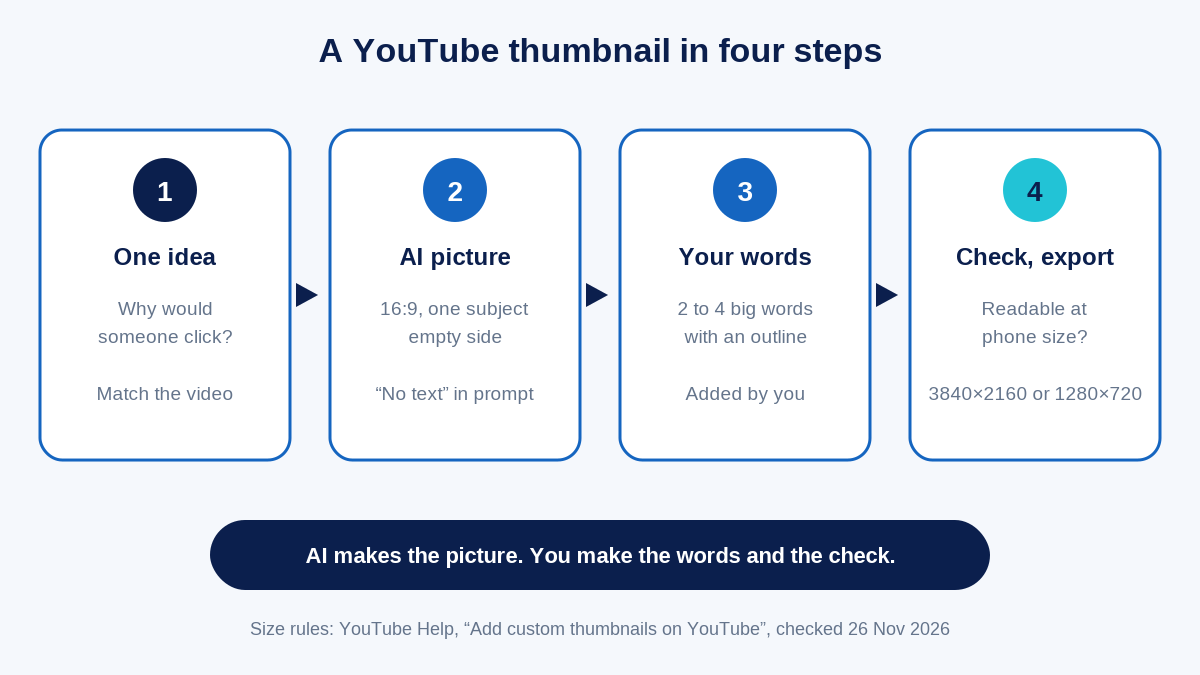
To make a YouTube thumbnail with AI, generate only the picture with an AI image tool, in a 16:9 shape, with one clear subject and empty space on one side. Then add the words yourself in an editor (Canva, CapCut, Photoshop or ffmpeg), because AI image tools still often misspell text. Use two to four big words, check the thumbnail at phone size, and export it at 3840 × 2160 or 1280 × 720 pixels as a JPG or PNG. YouTube's own help page recommends 3840 × 2160 with a minimum width of 640 pixels.
The YouTube size and file rules below come from YouTube Help's page Add custom thumbnails on YouTube, checked on 26 November 2026. The prompts and the checking method are our own. The ffmpeg commands were tested on Windows with ffmpeg 6.1 on the same day.
What YouTube asks for
According to YouTube Help, a custom thumbnail should:
| Rule | What YouTube says |
|---|---|
| Size | 3840 × 2160 pixels recommended, at least 640 pixels wide |
| Formats | JPG, GIF or PNG |
| File size | up to 2 MB when uploading from a phone, up to 50 MB from a computer |
That page also lists account requirements for custom thumbnails, so if the upload option is missing in YouTube Studio, check it there. If you plan to use YouTube's thumbnail testing feature, its help page (Test & compare thumbnails) says thumbnails under 720p get downscaled in the test, so make every version at least 1280 × 720.
Step 1: Decide the one idea
A thumbnail is seen for a moment, at the size of a stamp, next to other videos. It can show one idea, not three. Before you write any prompt, finish this sentence: "Someone should click because they see ___."
For example:
- a tutorial on fixing blurry AI images: "a blurry face next to a sharp one",
- a product review: "the product, big and clean, with a surprised hand pointing at it",
- a faceless story channel: "one dramatic scene from the story".
The thumbnail must match the video. A picture that promises something the video doesn't show brings clicks that leave quickly, and that hurts more than it helps.
Step 2: Prompt the picture, with space for text
Ask for a 16:9 image, one subject, strong contrast, and an empty area where your words will go. Leave text out of the prompt.
A wide 16:9 photo of a young woman at a desk looking surprised at a laptop
screen, lit by warm window light from the left. She is on the right third
of the frame. The left half is a clean, dark, out-of-focus wall with no
objects, leaving space for a title. Shallow depth of field, bold colours,
high contrast, sharp focus on her face. No text, no letters, no logos.
Why each part is there:
- "Wide 16:9" matches the thumbnail shape, so nothing gets cropped later. If your tool has an aspect ratio setting, choose 16:9 there too.
- "Right third" and "left half is clean" reserve space for words.
- "High contrast, bold colours" helps the picture stand out when small.
- "No text, no letters" stops the model from adding random, misspelled words.
If faces look plastic or the light looks flat, our guide on why AI images look fake shows the prompt changes that fix most of it. For a channel that uses the same AI host in every video, keep them recognisable with the method in how to keep an AI character consistent across images.
Don't use real celebrities, public figures or other people's characters in thumbnails. Use your own AI characters, your own photos or your client's real product.
Step 3: Add the words yourself
AI images often misspell words or bend letters, so put the title on top yourself. Our post on fixing misspelled text in AI product images explains the same overlay method for product shots.
Rules that keep text readable when small:
- Two to four words. The video title already says the rest.
- Big and thick. A bold font, filling a large part of the empty side.
- An outline or shadow so the words stand out on any background.
- Not in the bottom-right corner, where YouTube shows the video length.
Any editor works. If you like the command line, ffmpeg can crop the image to 16:9, scale it to 3840 × 2160 and write the text in one go. Copy a font file such as arial.ttf (on Windows, from C:\Windows\Fonts) into the same folder first:
ffmpeg -i ai-image.png -vf "scale=3840:2160:force_original_aspect_ratio=increase,crop=3840:2160,drawtext=fontfile=arial.ttf:text='FIX IT FAST':fontcolor=white:fontsize=360:borderw=18:bordercolor=black:x=160:y=h-text_h-200" -q:v 3 thumbnail.jpgscale=...increase,crop=3840:2160fills the 16:9 frame and trims the extra, so the image is never stretched.fontsize=360is large because the image is 4K wide; at 1280 × 720 you would use about a third of that.borderw=18:bordercolor=blackadds the outline.x=160:y=h-text_h-200puts the words on the left, above the bottom edge. Move them to the empty side of your picture.-q:v 3sets JPG quality (lower number, better quality).
In our test, a 2752 × 1536 image became a 3840 × 2160 JPG of about 660 KB, well under the 2 MB phone limit.
Step 4: Check it at phone size
Most people will see your thumbnail on a phone, small. Make a tiny copy and look at it without zooming:
ffmpeg -i thumbnail.jpg -vf scale=320:-1 small-check.pngAsk yourself:
- Can I read every word at this size?
- Is it clear what the picture shows within a second?
- Does it still stand out next to other thumbnails? (Put it beside a screenshot of YouTube search results.)
- Does it match what really happens in the video?
If you need a smaller file, for example to upload from your phone, make a 1280 × 720 copy:
ffmpeg -i thumbnail.jpg -vf scale=1280:720 -q:v 3 thumbnail-720.jpgOurs came out at about 130 KB.
Make two versions and compare
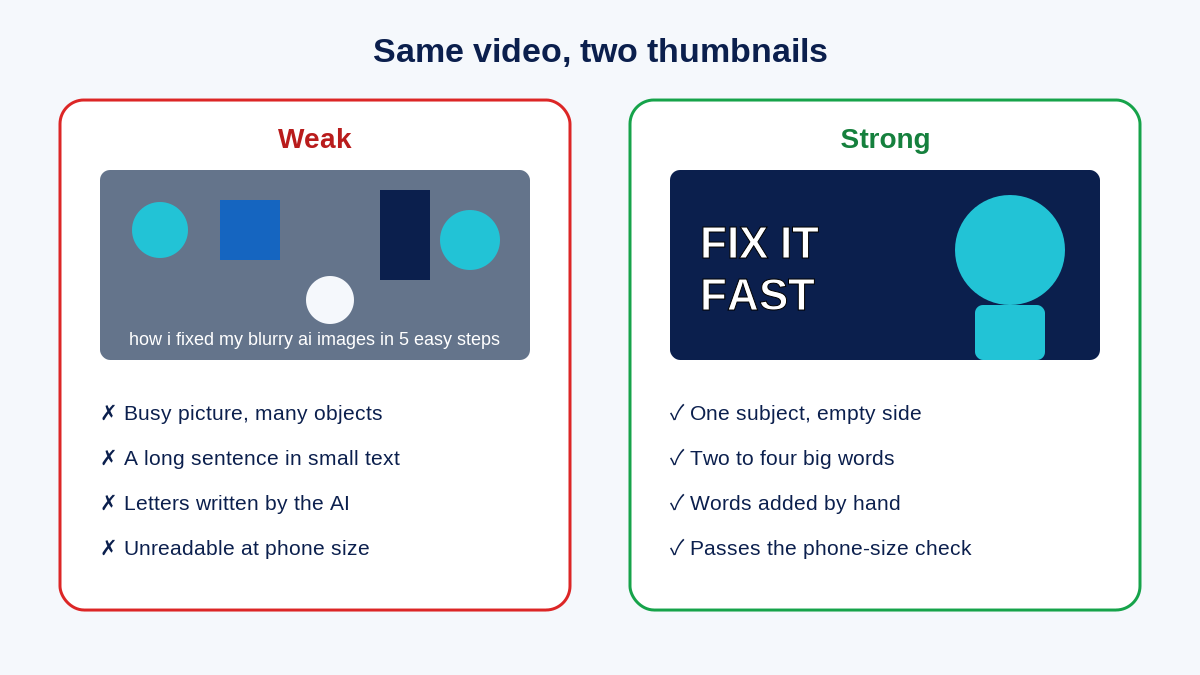
Make two thumbnails with different ideas, not just different colours: for example, a face reacting versus the result itself. YouTube's Test & compare feature can show both to viewers if it's available on your channel. Otherwise, change the thumbnail after a while and compare in YouTube Studio analytics, keeping in mind that other things change over time too.
Making AI images that look real and work as ads and thumbnails is part of our AI Content Creator Program. If you're starting a channel without showing your face, our guide to a faceless YouTube channel with AI covers the rest of the setup.
Frequently asked questions
What size should a YouTube thumbnail be?
YouTube Help recommends 3840 × 2160 pixels, with a minimum width of 640 pixels, as a JPG, GIF or PNG. A 1280 × 720 image is also common and works well, and it keeps the file small. Keep it 16:9 either way.
Can I let the AI write the text on the thumbnail?
You can try, but check every letter. Image models still often misspell or bend words. Adding the text yourself is faster than generating again and again, and you can change the words later without remaking the picture.
Why can't I upload a custom thumbnail?
YouTube lists account requirements on its custom thumbnails help page. Check that page and your YouTube Studio settings first. If you're uploading from a phone, also check the file is under 2 MB.
Do I have to say the thumbnail was made with AI?
YouTube's AI disclosure is about realistic altered or synthetic content in the video itself. Read our guide on labelling AI videos on YouTube, Instagram and TikTok for what to switch on, and never make a thumbnail that misleads people about what's real.
- #youtube thumbnail
- #ai images
- #prompting
- #faceless channel
- #ffmpeg
- #image prompts
Want a full course on this?
AI for Everyone
Use ChatGPT, Claude and Gemini properly for study, work and daily tasks.
Join the free waitlistWant to learn AI video properly?
The AI Content Creator Program takes you from your first prompt to a portfolio you can show: 27 short, focused lessons in easy Urdu, with a weekly live session and tasks our team reviews.
Enroll now