How to keep the same AI character across images and videos
Your AI character's face changes in every image? Use a reference sheet, a locked description and reference images, then animate from stills. A step-by-step method.
Saqqa Academy team
11-Nov-2026 · 5 min read
In this article
To keep the same AI character across many images and videos, don't describe the character again from scratch each time. Make one reference sheet of the character first, write one locked description you paste into every prompt unchanged, give the image tool your reference pictures every time (if it accepts reference images), and change only the scene, pose and lighting. Then make your videos from those approved still images (image-to-video), not from text alone. Text-only prompts invent a new face on every run; references and a fixed description keep it stable.
This method works with most current image and video tools. Features differ by tool and change often, so check your tool's own help pages for what it supports, such as reference images, a "character" feature or a fixed seed.
Why the face keeps changing
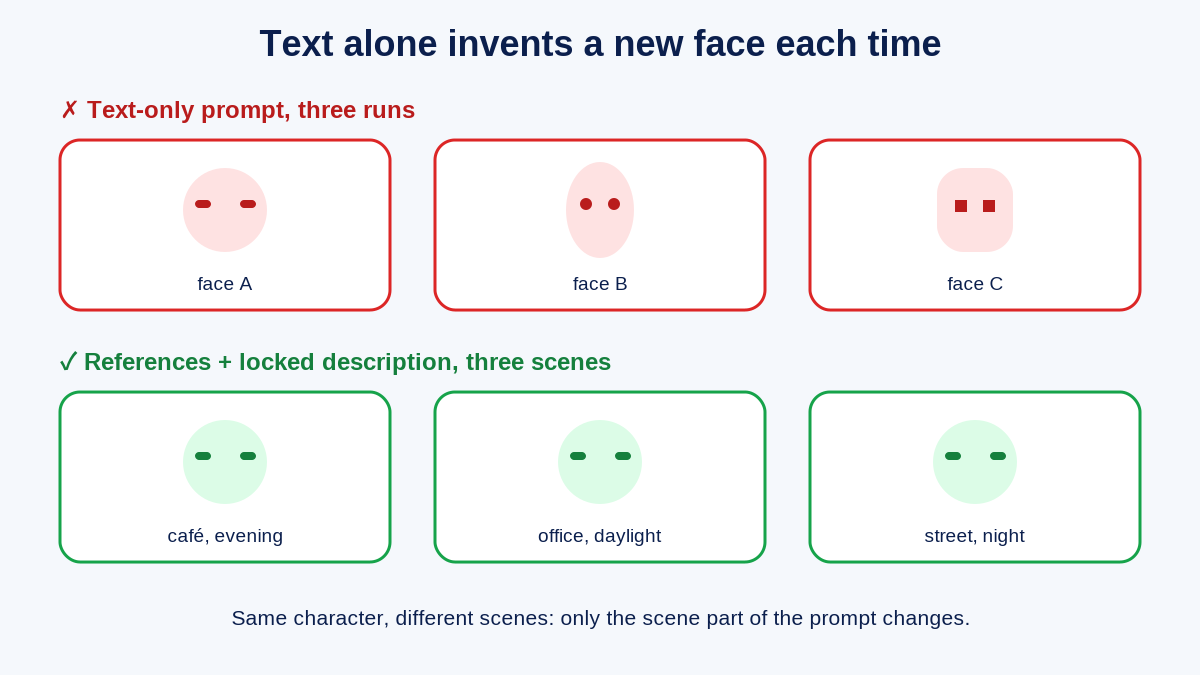
An image model doesn't remember your character. Each time you prompt it, it builds a new person who fits the words. "A young man with short black hair and a beard" fits millions of faces, so you get a different one every time. Small wording changes ("short hair" vs "cropped hair") make it worse, because the model reads them as a new request.
So the goal is to give the model less room to guess: show it the face, and keep the words the same.
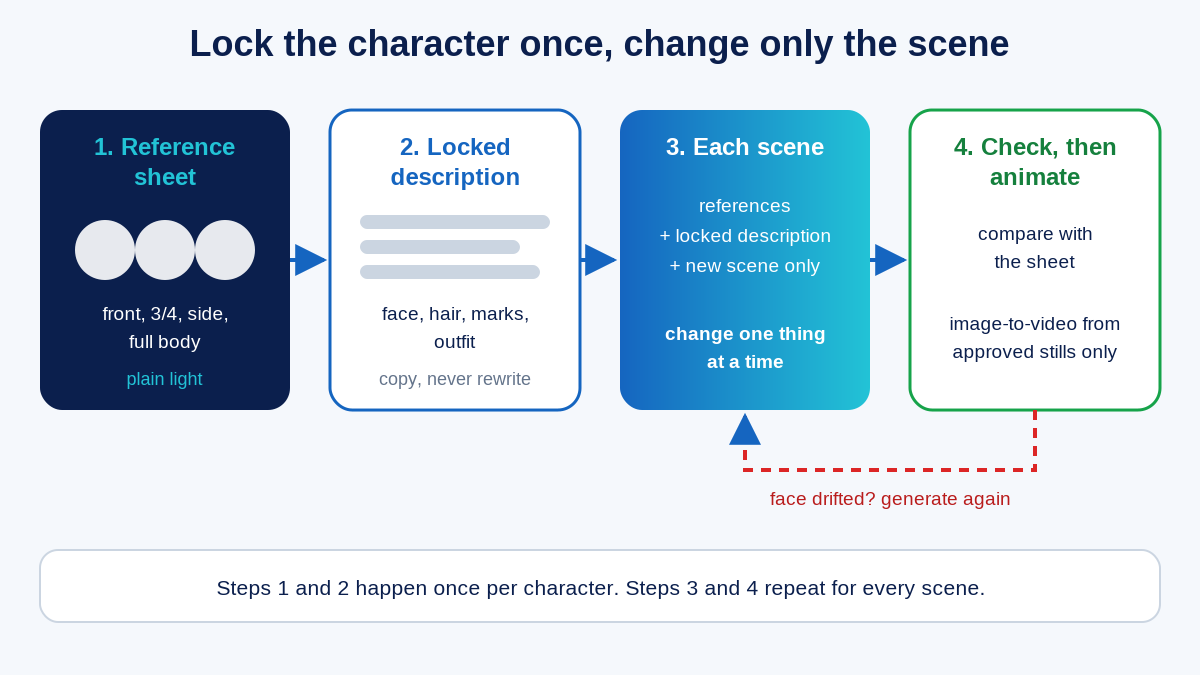
Step 1: Make a reference sheet first
Before any campaign or story, generate your character on a plain background from several angles: front, three-quarter, side profile, and one full-body shot. Keep the clothes simple and the lighting even. Generate many options and pick the face you like; then make the other angles of that face, using the first image as a reference.
Save these as your character's "ID pack". You'll attach them again and again.
Tips:
- Neutral expression and plain light make the face easy for the tool to copy.
- One distinctive detail helps: a small scar, a nose ring, a particular hairstyle. Keep it in every image.
- Don't use a real person's face without their written permission, and never make a real-looking person say or do things they didn't. Many platforms require you to label realistic AI content too.
Step 2: Write one locked description
Write a short paragraph that describes only what never changes: age range, face shape, skin tone, eyes, hair, any marks, body type and a signature outfit. Paste it into every prompt exactly as written.
CHARACTER (keep identical):
Ayaan, a man in his late 20s, oval face, warm medium-brown skin,
dark brown almond-shaped eyes, thick straight eyebrows, short black hair
with a side part, neatly trimmed short beard, small mole under the left eye,
slim build. Wears a plain navy crew-neck t-shirt.
Keep the scene out of this block. Lighting, place, pose and mood go in a separate part of the prompt, so you can change them without touching the character.
Step 3: Build each scene prompt the same way
Use the same order every time: reference images, the locked description, then the scene.
[Attach: reference sheet images]

CHARACTER (keep identical):
<paste the locked description>

SCENE:
Sitting at a small café table by a window in the evening, holding a cup of
chai with both hands, smiling slightly, looking at the camera.
Warm window light from the left, shallow depth of field, photo-realistic.
Change one thing at a time. If you change the place, the outfit and the camera angle in one go and the face drifts, you won't know which change caused it.
If your tool lets you reuse a seed (a number that fixes the random starting point), keeping the same seed while you test small scene changes can help too. Not every tool offers this, and a seed alone doesn't lock a face once the prompt changes a lot.
Step 4: Check every image against the sheet
Put each new image next to your reference sheet and check the details that drift most: eye shape, nose, jawline, hairline, eyebrows, the distinctive mark, and the age. Throw away near misses. It's cheaper to generate again now than to fix a whole video later.
A simple habit: keep one folder of approved stills per character. Only images in that folder go into videos or posts.
Step 5: Animate from approved stills
Most AI video tools can start from an image (image-to-video). Use your approved still as the first frame, and describe only the motion and camera in the video prompt: "she turns her head toward the window and smiles, slow push-in". Don't re-describe the face in detail; the image already carries it, and new face words can make the model change it.
Keep clips short. The further a clip moves from its first frame (big turns, fast motion, long duration), the more chance the face changes. For a longer story, make several short clips, each from its own approved still, and join them in an editor such as CapCut.
Common mistakes
- Rewriting the description each time. Even synonyms change the result. Copy and paste.
- Putting scene details inside the character block. Then you edit the character to change the scene.
- Long, busy video prompts. Describe the motion, not the person.
- Skipping the check. Small drifts add up across a series until the character is someone else.
Frequently asked questions
Why does my AI character look different in every image?
Because the model creates a new person that fits your words each time, and words alone fit many faces. Give it reference images of your character and keep the description identical in every prompt.
Can I keep a character consistent with text prompts only?
Only roughly. A very detailed, unchanged description helps, but you will still see drift. Reference images (or a tool's built-in character feature, if it has one) give much more stable results.
Should I make the video from text or from an image?
From an approved image. Image-to-video starts from the face you already checked, so the character stays closer to your reference than a text-to-video prompt would.
Can I use a real person's face as my character?
Only with that person's clear permission, and never to make them appear to say or do things they didn't. For client work, get the permission in writing, and follow each platform's rules on labelling AI content.
- #ai character
- #consistent character
- #ai images
- #image to video
- #ai video
Want to learn AI video properly?
The AI Content Creator Program takes you from your first prompt to a portfolio you can show: 27 short, focused lessons in easy Urdu, with a weekly live session and tasks our team reviews.
Enroll now