How to add an AI voiceover in CapCut with text to speech, and fix it when it doesn't work
Turn a written script into a voiceover in CapCut on phone, computer or web, make it sound natural, and fix missing voices or audio that won't generate.
Saqqa Academy team
18-Nov-2026 · 6 min read
In this article
To add an AI voiceover in CapCut, add a text layer with your script, select that text layer, tap or click Text-to-Speech, choose a voice and language, and press Generate. CapCut creates an audio clip of the voice reading your text and puts it on the timeline. If nothing happens, the usual causes are a weak internet connection, no text layer selected, a voice or language that isn't available, an old app version, or audio that was generated but is muted or sits outside the timeline.
Steps and fixes below come from CapCut's help pages on why text to speech isn't working and missing voice options, checked on 18 November 2026. The tips on writing for a voice are our own. CapCut moves menus between versions and regions, so look for the closest name if yours is different.
Why text to speech is useful for AI video
Many AI videos have no person on camera: product ads, explainers, faceless channels. The voice carries the story. Text to speech lets you make that voice from a script, change a line in seconds, and keep the same voice across a whole series without booking a studio. If you're planning a channel like that, our guide to starting a faceless YouTube channel with AI covers the rules on AI voices and disclosure.
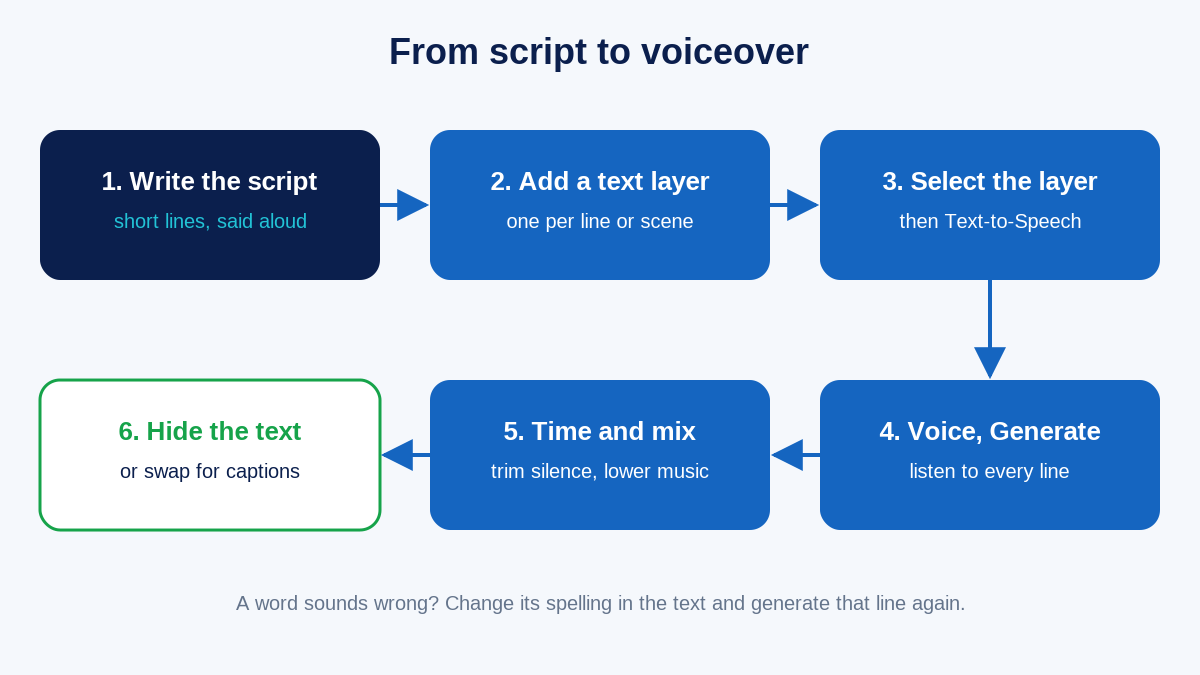
Step 1: Write the script for the ear
A script that reads well on paper can sound stiff when a voice reads it. Before you paste it into CapCut:
- Short sentences. One idea per sentence. The voice pauses at full stops, which gives the viewer time to follow.
- Write numbers and names the way they're said. "Rs 2,500" may be read oddly; "two thousand five hundred rupees" is safer. Spell brand names the way they sound if the voice gets them wrong.
- Read it out loud yourself once. If you stumble, the AI voice will sound awkward there too.
For a 15 to 30 second Reel, a script of a few short lines is usually enough. Split it into one text layer per line or scene so you can time each part to its shot.
Step 2: Generate the voice
CapCut's help gives these steps for each version:
On a phone
- Open the project, tap Text and add your text.
- Tap the text layer on the timeline.
- Choose Text-to-Speech in the bottom menu.
- Pick a voice style and tap Generate.
On a computer (desktop app)
- Add a text layer to the timeline and type your script.
- Select the text clip.
- Click the Text-to-Speech option.
- Choose a voice, generate and preview.
In CapCut Online (web)
- Click Text and add a text box to the timeline.
- Type the script and select the text layer.
- Click Text-to-Speech in the toolbar, choose a voice and language, and click Generate.
Listen to the whole clip before you move on. If a word sounds wrong, change the spelling in the text and generate that line again.
Step 3: Time it to the pictures
The new audio clip appears on the timeline. Now:
- Line up each voice clip with the shot it describes. Drag the audio, not the video, so your edit stays the same.
- Trim the silence at the start and end of each clip.
- Lower the music under the voice so every word is clear. A voice that fights the music is the most common reason viewers scroll away.
- Hide the text layer if you don't want the script on screen. You can delete the text after the audio is made, or keep it and turn it into captions.
If you do want words on screen, auto captions usually look better than the raw script layer. Our step-by-step guide on adding auto captions in CapCut shows how to make them readable on a phone.
Fix: text to speech isn't working
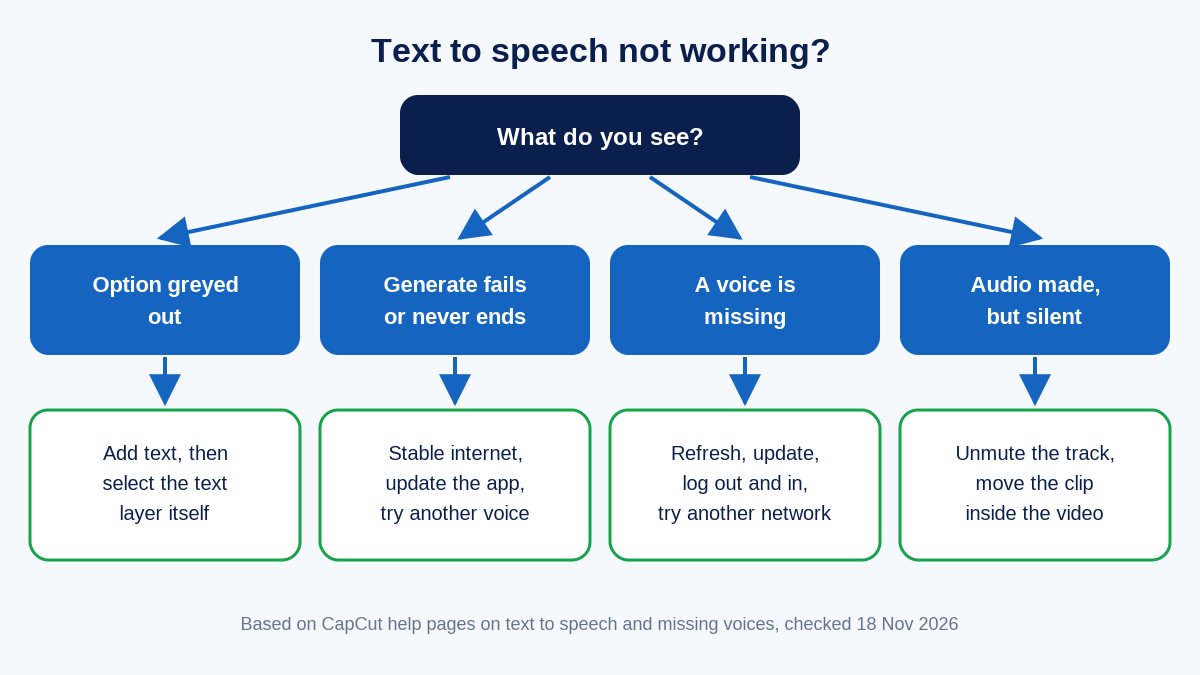
CapCut's help lists five causes. Here they are with what to try:
| Problem | Cause from CapCut’s help | What to try |
|---|---|---|
| Generate fails or never finishes | Weak or no internet (text to speech runs in the cloud) | Use a stable connection and try again |
| Option is greyed out | No text layer selected; it only works on text layers | Add text, then tap or click the text layer itself |
| Error with one voice | Voice or language not supported | Pick another voice or language |
| Strange behaviour or crashes | Old app version or a temporary glitch | Update CapCut, restart the app or refresh the browser |
| Audio made, but you can't hear it | Clip muted or outside the timeline | Unmute the track and check the clip sits inside the video |
Fix: a voice is missing
A separate help page says some voices can be missing on web and PC because of server updates, a gradual rollout to accounts, or an old app or browser. CapCut suggests:
- Choose from the voices you can see in the panel.
- Refresh the app or browser, and update CapCut.
- If that doesn't help, clear the browser cache or app data and restart, log out and back in, or try a different network (company and restricted networks can block features).
- Still missing? Contact CapCut support with a screenshot.
Don't build a client project around one specific voice until you've checked it works on the device you'll edit on.
Making the voice sound less robotic
- Keep each text layer short. A voice reads one line more naturally than a long paragraph.
- Add pauses with punctuation. A comma gives a short pause; a full stop gives a longer one.
- Use the same voice for the whole video, and ideally the whole series, so it becomes part of your brand.
- Match the voice to the audience. A calm voice for an explainer, a brighter one for a product ad.
Voice, music and captions are the finishing layer of every AI video we make in the AI Content Creator Program, and the beginner's roadmap shows where this step fits in the whole process.
Frequently asked questions
Is CapCut text to speech free?
The feature is built into CapCut, but which voices and features need a paid plan changes over time and by region. Check inside your own app before you plan a project around a specific voice.
Can CapCut read Urdu or Hindi?
The voices and languages you can choose depend on your app version and region. Open the voice list in your app to see what's offered. If your language isn't there, record the voice separately and import it as audio.
Can I use a CapCut AI voice on YouTube or for a client?
Read CapCut's terms for commercial use in your region, and follow each platform's rules on AI content. YouTube, for example, asks creators to disclose realistic altered or synthetic content.
Why does the voice say a word wrongly?
Text to speech guesses pronunciation from spelling. Change the spelling to match the sound, write numbers as words, and generate the line again.
- #capcut
- #text to speech
- #ai voice
- #voiceover
- #editing
- #faceless video
Want to learn AI video properly?
The AI Content Creator Program takes you from your first prompt to a portfolio you can show: 27 short, focused lessons in easy Urdu, with a weekly live session and tasks our team reviews.
Enroll now