Veo 3.1 Fast and Quality leave Google Flow on 5 December 2026: which model to use now
Google Flow is retiring Veo 3.1 Fast, Veo 3.1 Quality and Omni Flash 1.1 on 5 December 2026. Here is what replaces them and how to move your projects.
Saqqa Academy team
18-Nov-2026 · 5 min read
In this article
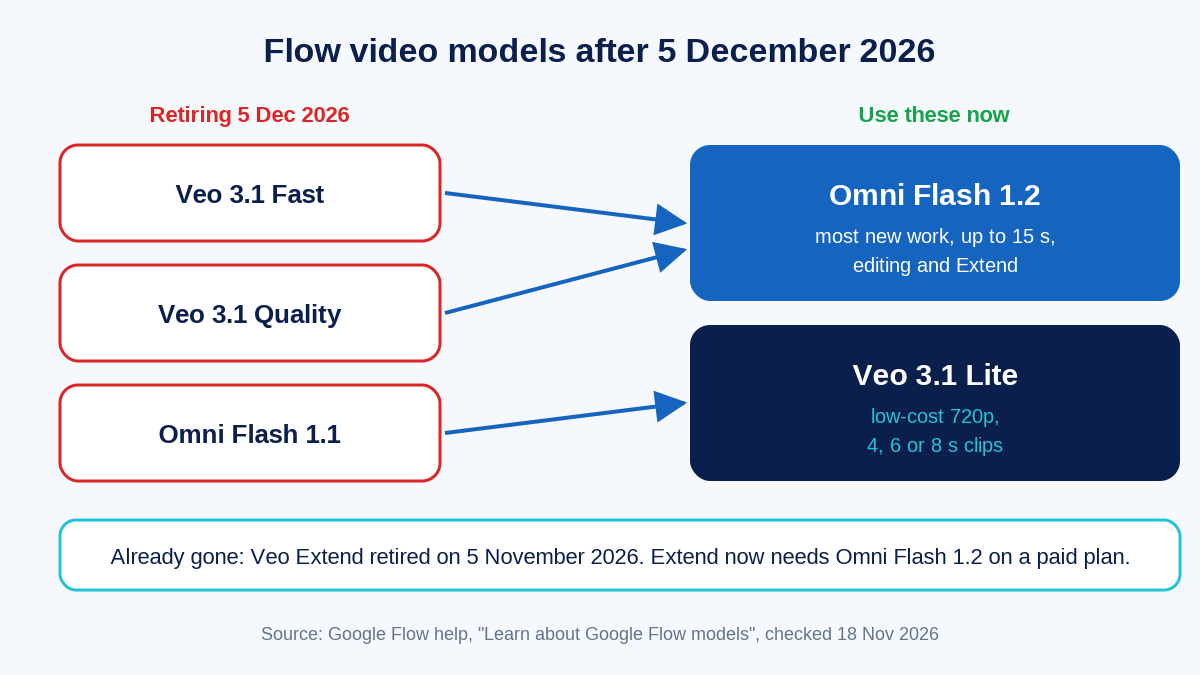
Google Flow will retire Veo 3.1 Fast, Veo 3.1 Quality and Gemini Omni Flash 1.1 on 5 December 2026. For new projects, Google recommends Omni Flash 1.2 (the newest model, with longer clips and editing) or Veo 3.1 Lite (the low-cost 720p option). Veo Extend has already gone: it retired on 5 November 2026, and extending a clip in Flow now needs a paid Google AI plan and Omni Flash 1.2. If you have a project that depends on the old models, finish or re-make those clips before 5 December.
Everything below comes from Google's own help page, Learn about Google Flow models and supported features, checked on 18 November 2026. The page shows no update date, and Flow changes often, so check it again before you plan a big project.
What is changing, in short
Flow currently lists five video models. Two are the ones to use from now on, and three are on their way out:
| Model in Flow | Status | Best for |
|---|---|---|
| Omni Flash 1.2 | Current, recommended | Most new work: longer clips, editing, extending |
| Veo 3.1 Lite | Current, recommended | Cheap 720p drafts and simple shots |
| Veo 3.1 Fast | Retires 5 Dec 2026 | Finish old projects only |
| Veo 3.1 Quality | Retires 5 Dec 2026 | Finish old projects only |
| Omni Flash 1.1 | Retires 5 Dec 2026 | Finish old projects only |
If you use Veo or Omni through the Gemini API in code, that is a separate timetable. Our post on Veo 3.1 Preview shutting down in the Gemini API covers the developer side.
What each current model can do in Flow
According to the help page:
Omni Flash 1.2
- Text to Video, Frames to Video (web only), Ingredients (references) to Video, and Video to Video editing.
- Both aspect ratios (landscape and vertical).
- Free users: clips of 3 to 10 seconds. Google AI Plus, Pro or Ultra: 3 to 15 seconds.
- Paid plans also get Extend (3 to 10 second extensions, web only) and upscaling of 360p clips to 1080p (4K on Ultra).
- A 360p draft costs one third of the credits of a 720p clip, which makes it a cheap way to test an idea.
Veo 3.1 Lite
- Text to Video and Frames to Video (first frame, or first and last frame), both aspect ratios, 4, 6 or 8 seconds.
- Ingredients to Video at 8 seconds only.
- No Video to Video editing and no Extend.
Credit costs change, so the page tells you to check the cost and resolution in the prompt box settings before you generate. We don't list prices here for that reason.
Which one should you pick?
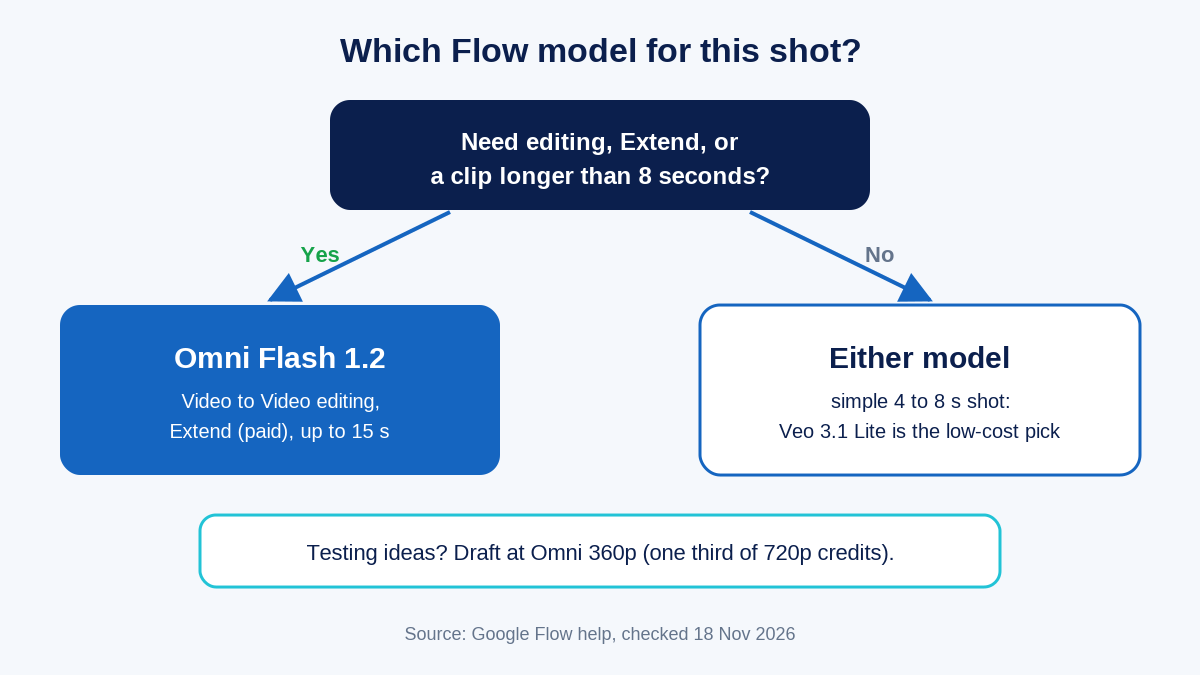
A simple way to decide:
- You need to change part of an existing clip, or make it longer. Use Omni Flash 1.2. It's the only model in Flow with Video to Video editing and Extend.
- You need clips longer than 8 seconds. Omni Flash 1.2 again (up to 10 seconds free, 15 on a paid plan).
- You're testing many ideas cheaply. Try Omni Flash 1.2 at 360p, or Veo 3.1 Lite at 720p, and only render the winners at higher quality.
- You have a simple shot from a start image. Either model works. Veo 3.1 Lite is the low-cost choice.
How to move an existing project
1. List the shots that still use an old model
Open each project and note which clips were made with Veo 3.1 Fast, Veo 3.1 Quality or Omni Flash 1.1. Clips you have already generated and downloaded are files on your computer, so keep a copy of anything you need. The retirement is about generating with those models.
2. Keep your prompts and frames
Your start frames, reference images and prompts still work as inputs. Save them in one folder per project. If you made a character sheet for a consistent AI character, it matters even more now, because a new model will draw small details slightly differently.
3. Re-generate one test shot first
Pick your hardest shot, switch the model to Omni Flash 1.2 or Veo 3.1 Lite and generate it. Compare it with the old version. Expect to adjust the prompt: a different model reads the same words differently. Our guide on writing an image-to-video prompt that actually moves explains the parts that make the biggest difference: the subject's action, the camera move and what must stay the same.
4. Re-make shots in the same model
If an ad has five shots, try to make all five with the same model. Mixing models in one edit often shows as small jumps in colour, texture or motion between cuts.
5. Update your notes and templates
If you keep prompt templates, a client checklist or a course workbook that says "use Veo 3.1 Fast", change it now so you don't lose time in December.
What this means if you're learning AI video
Model names change every few months. The skills that last are the ones underneath: a clear start frame, a short and specific prompt, consistent characters, and good editing. Learn those once and you can switch models in an afternoon. That is how we teach it in the AI Content Creator Program: the tool walkthroughs change, the method stays.
Frequently asked questions
Will my old Veo 3.1 videos disappear?
The help page talks about the models retiring, not about deleting clips. To be safe, download every clip you want to keep before 5 December 2026 and store it outside Flow.
Is Omni Flash 1.2 free in Flow?
The help page lists Omni Flash 1.2 as available to all users, with free users limited to 3 to 10 second clips and paid Google AI plans getting longer clips, Extend and upscaling. Generations still use credits, so check your balance in Flow.
Why can't I extend my clip any more?
Veo Extend retired on 5 November 2026. Extending now needs Omni Flash 1.2 on a paid Google AI plan (Plus, Pro or Ultra), and it works on the web version only.
Which image models does Flow use for frames and ingredients?
The page lists Nano Banana 2 Lite as the default free option, Nano Banana 2.1 as the standard model and Nano Banana Pro as the default for Ultra subscribers.
- #google flow
- #veo 3.1
- #omni flash
- #ai video
- #model update
Want to learn AI video properly?
The AI Content Creator Program takes you from your first prompt to a portfolio you can show: 27 short, focused lessons in easy Urdu, with a weekly live session and tasks our team reviews.
Enroll now