Veo 3.1 Preview was shut down in the Gemini API: how to switch to Gemini Omni Flash
Google shut down the Veo 3.1 Preview models in the Gemini API on 22 October 2026. Here is what replaced them, what changes in your code, and what a clip costs now.
Saqqa Academy team
12-Nov-2026 · 7 min read
In this article
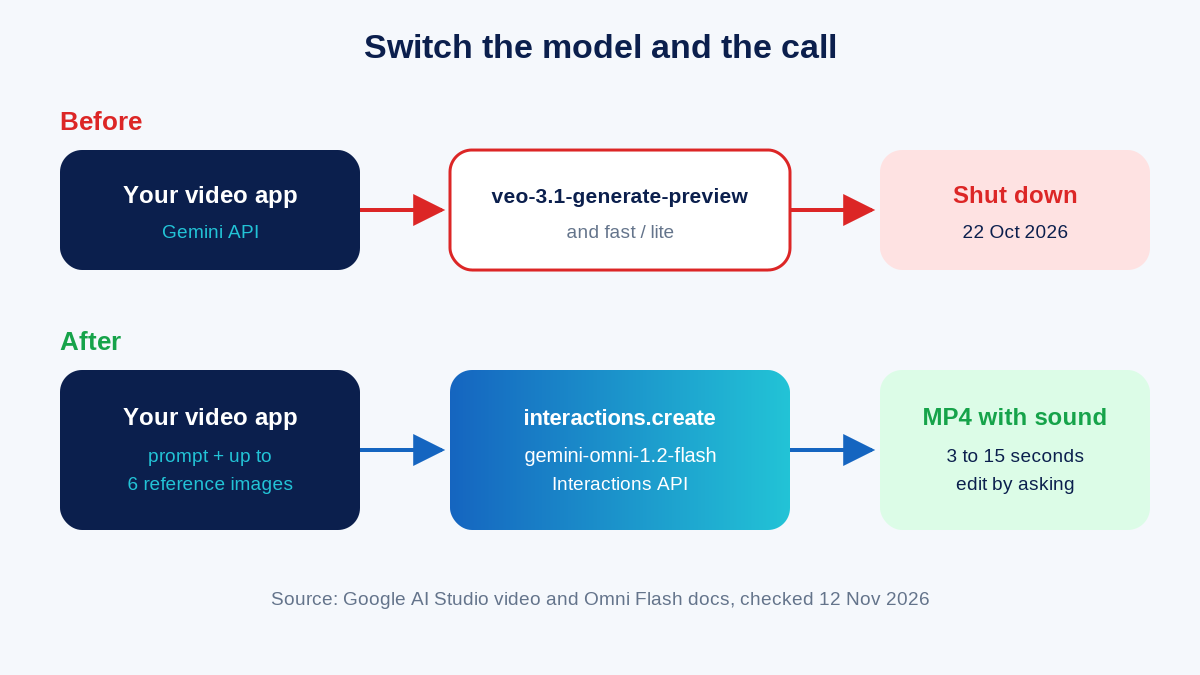
If your video app suddenly stopped working on the Gemini API, this is probably why: Google shut down the Veo 3.1 Preview models (veo-3.1-generate-preview, veo-3.1-fast-generate-preview and veo-3.1-lite-generate-preview) in the Gemini API on 22 October 2026. Google's video page now points developers to Gemini Omni Flash (gemini-omni-1.2-flash), or to the generally available Veo models on Google's Gemini Enterprise Agent Platform. Omni Flash makes 3 to 15 second clips with sound, accepts up to 6 reference images to keep characters consistent, and lets you edit a clip by simply asking for changes. The biggest code change is that you now call the Interactions API (interactions.create) instead of the old video generation call.
The facts in this post come from Google's video generation page, the Gemini Omni Flash guide and the Gemini API pricing page, all checked on 12 November 2026.
What changed, in short
| Veo 3.1 Preview (Gemini API) | Gemini Omni 1.2 Flash | |
|---|---|---|
| Status | Shut down 22 Oct 2026 | Generally available on the paid tier |
| Model ID | veo-3.1-generate-preview and others | gemini-omni-1.2-flash |
| How you call it | Video generation call | Interactions API: interactions.create |
| Clip length | (no longer relevant) | 3 to 15 seconds, default 10 |
| Reference images | (no longer relevant) | Up to 6 (up to 3 per character, 2 characters) |
| Editing | Not by conversation | Edit with follow-up prompts |
Google also notes that the older gemini-omni-1.1-flash stays available for a short transition. From 3 December 2026, requests to it are routed to gemini-omni-1.2-flash automatically and billed at the 1.2 rates.
Step 1: Change the model and the call
With the Google Gen AI SDK, a text-to-video request is now one interactions.create call. This JavaScript example follows Google's guide. The video comes back as base64 data, which you save as an .mp4:
import { GoogleGenAI } from "@google/genai";
import * as fs from "fs";

const ai = new GoogleGenAI({}); // reads your GEMINI_API_KEY

const interaction = await ai.interactions.create({
  model: "gemini-omni-1.2-flash",
  input: "Close-up of a gift box of dry fruits on a wooden table, soft morning light, slow push-in. In a single continuous shot. No dialogue.",
  response_format: { type: "video", aspect_ratio: "9:16", duration: "8s" },
});

if (interaction.output_video?.data) {
  fs.writeFileSync("product.mp4", Buffer.from(interaction.output_video.data, "base64"));
}
We could not run this here, because it needs a paid Gemini API key and every clip costs money. The field names (response_format, aspect_ratio, duration, output_video.data) are the ones shown in Google's guide on 12 November 2026. Check the guide again if your SDK version complains.
The options you will use most:
aspect_ratio:"16:9"(default) or"9:16"for Reels, TikTok and Shorts.duration: any whole number of seconds from"3s"to"15s". Without it you get 10 seconds. If you set it, it wins over any length you wrote in the prompt.- Resolution: 360p, 720p (default), 1080p or 4K. Google says the 1080p and 4K outputs are upscaled.
delivery: "uri"inresponse_formatfor videos bigger than 4 MB. You get a Google-hosted link to wait on and download, instead of the data inside the response.
Step 2: Move image-to-video and reference images
This is where many Veo apps did their most useful work: animating a product photo, or keeping the same character across shots. In Omni Flash you put images and text together in the input list. Each image is a part with type, base64 data and mime_type:
const input = [
  { type: "image", data: productPhotoBase64, mime_type: "image/jpeg" },
  { type: "text", text: "Bring this product photo to life: the box lid opens slowly and steam rises from a cup beside it. Keep the box design exactly the same." },
];
The model decides from your prompt how to use the image. According to the guide:
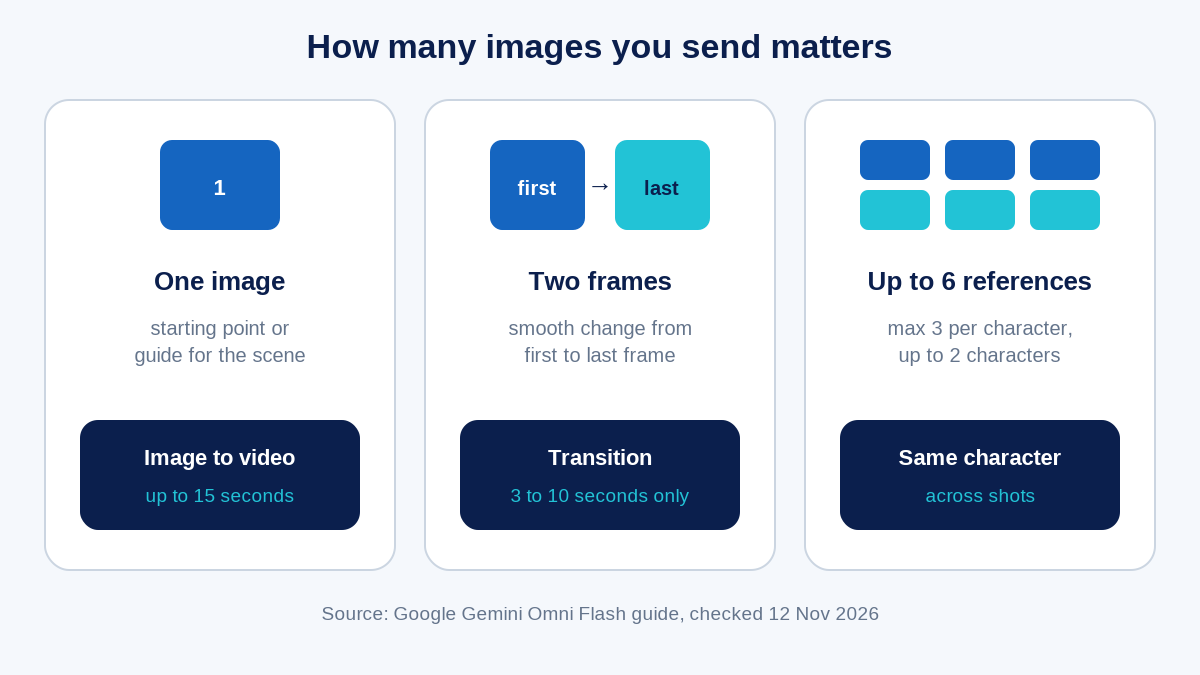
- One image: used as a starting point or a guide for the scene (image to video).
- Two images, first and last frame: the model animates a smooth change from the first to the last. This mode only allows 3 to 10 seconds; asking for more returns an invalid argument error.
- Reference images (subject reference): up to 6 images, at most 3 per character and 2 characters, so faces, clothes and objects stay the same across shots.
If the prompt alone does not pick the right mode, the guide lists a task setting with the values text_to_video, image_to_video, reference_to_video, edit and extend. Google advises trying a clear prompt first.
Step 3: Edit by asking, instead of generating again
The new part is editing by conversation. Pass the id of the last result as previous_interaction_id and say what to change. Google's example turns a violin invisible in a clip of someone playing it. The guide's tips for editing prompts:
- Keep edit prompts short. "Make the phone invisible. Keep everything else the same." works better than a long paragraph.
- Add "Keep everything else the same" when you change one detail.
- Generated clips up to 15 seconds can be edited. Extending adds 3 to 10 seconds per turn, up to 30 seconds in total, and only at the end of the clip.
One catch: if you set store=false for speed, the video is not kept, so you cannot edit it in a later turn.
Step 4: Update your prompts
Veo prompts mostly carry over, but the Omni guide points out a few differences that can surprise you:
- It may cut between shots by default. For one continuous take, say "in a single continuous shot" or "no scene cuts".
- Negative prompts are not a separate field. Write them in the prompt: "No dialogue. No extra sound effects."
- You can time events: "After 3 seconds, a woman enters the scene", or a timecode list like
[0-5s] ... [5-10s] .... - Describe the audio you want, especially music, or the model chooses its own soundtrack.
- English is fully supported. Google says other languages have not been evaluated, so results can vary. Write the prompt in English even if the video is for an Urdu audience, and add your voice-over later if needed.
What a clip costs now
On the paid tier, Gemini Omni 1.2 Flash bills video as output tokens: $12 per 1 million tokens, with a fixed number of tokens per second of video (5,792 per second at 720p). Google's page works this out to about $0.70 for a 10-second 720p clip and about $1.04 for 15 seconds. There is no free tier for this model. This small script (tested with Node) prints the estimate for each resolution:
// Rough cost of one clip on Gemini Omni 1.2 Flash (Standard paid tier).
// Tokens per second and the $12 per 1M output tokens come from
// Google's Gemini API pricing page, checked 12 Nov 2026.
const TOKENS_PER_SECOND = { "360p": 1931, "720p": 5792, "1080p": 8688, "4k": 17376 };
const USD_PER_MILLION = 12;

function clipCost(seconds, resolution = "720p") {
  const tokens = TOKENS_PER_SECOND[resolution] * seconds;
  return (tokens / 1_000_000) * USD_PER_MILLION;
}

for (const res of Object.keys(TOKENS_PER_SECOND)) {
  const ten = clipCost(10, res).toFixed(2);
  const fifteen = clipCost(15, res).toFixed(2);
  console.log(`${res}: 10s = $${ten}, 15s = $${fifteen}`);
}
Output: 360p costs $0.23 for 10 seconds, 720p $0.70, 1080p $1.04 and 4K $2.09. Input tokens (your prompt and images) are billed too, at $1.50 per million. A cheap habit: test prompts at 360p and short durations, then make the final version at 720p or higher.
Limits worth knowing before you migrate
From the guide's limitations list:
- Uploading audio, or editing voices, is not supported.
- Editing or extending uploaded videos is not available in the EEA, Switzerland and the UK (editing clips the model made is fine).
- Images with certain recognisable people can't be uploaded for editing.
- YouTube links can't be used as a video source.
- Every video carries an invisible SynthID watermark that tools can detect, so viewers and platforms can check it is AI-made. Label AI videos honestly when you post them.
Frequently asked questions
Can I still use Veo 3.1 at all?
Not through the Gemini API Preview IDs, which were shut down on 22 October 2026. Google's page says GA Veo models are available through the Gemini Enterprise Agent Platform, which is a separate Google Cloud product with its own setup and billing.
Is Gemini Omni Flash free?
No. The pricing page lists it as not available on the free tier. You need a paid Gemini API account.
How do I keep the same character in every clip?
Send up to 3 clear reference images of the character (different angles help) with each request, and describe the character the same way every time. Our guide on keeping an AI character consistent covers how to make those reference images.
How long can a video be?
One generation is 3 to 15 seconds. You can extend a clip in steps of 3 to 10 seconds, up to 30 seconds in total. For longer ads, join several clips in an editor.
- #veo 3.1
- #gemini omni flash
- #gemini api
- #ai video
- #image to video
Want to learn AI video properly?
The AI Content Creator Program takes you from your first prompt to a portfolio you can show: 27 short, focused lessons in easy Urdu, with a weekly live session and tasks our team reviews.
Enroll now