How to watermark a video preview before the client pays (free, with ffmpeg)
Send clients a lower-resolution preview with a text or logo watermark, so they can review the video without getting the final file. Tested ffmpeg commands inside.
Saqqa Academy team
26-Nov-2026 · 6 min read
In this article
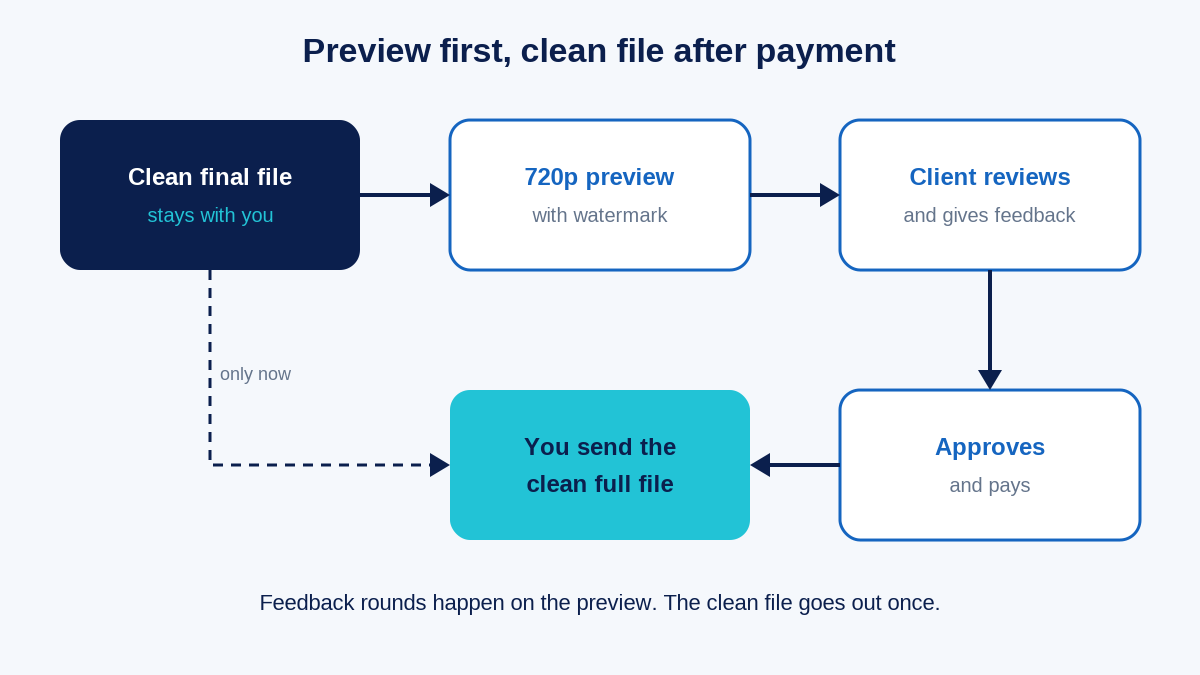
To protect your work before a client pays, send a preview, not the final file: a lower-resolution copy (720p is enough to judge a video) with a visible watermark such as "PREVIEW" across the middle or your logo in a corner. You can make one for free with ffmpeg in a single command. Keep the full-quality, clean file on your side and send it after approval and the agreed payment. Say this in your quote from the start, so the client expects it.
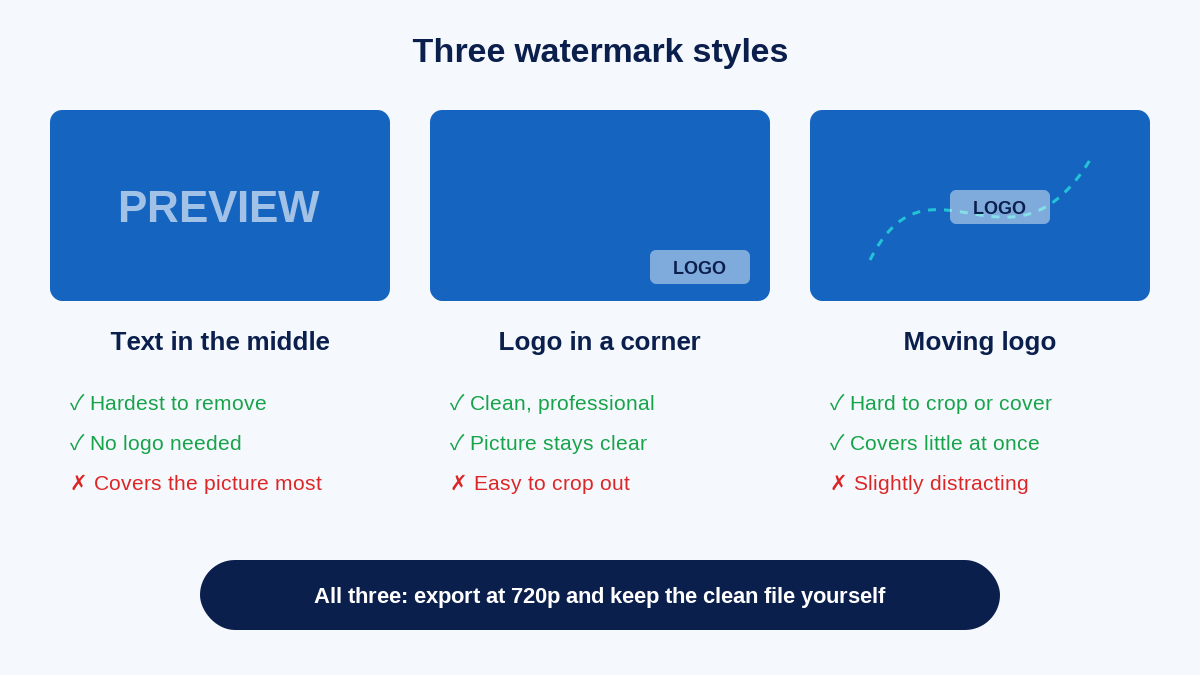
This post shows three watermark styles (text in the middle, a logo in the corner, and a logo that moves around so it's hard to crop out) and how to keep the preview file small enough for WhatsApp or email. All commands were tested on Windows with ffmpeg 6.1 on 26 November 2026, in both Git Bash and PowerShell. The advice on how to work with clients is our own approach, not a legal rule.
Why send a watermarked preview
When you send the final file before payment, the client already has everything they need. Most clients are honest, but new freelancers often get stuck with "we'll pay next week" after the video has already been posted. A preview solves that without any awkward talk:
- The client can review everything: story, timing, voice, music, text, colours.
- They can't post it as a finished ad, because a watermark and lower resolution make it look unfinished.
- You both have a clear step: approve, pay, receive the clean file.
It fits into the normal delivery flow we describe in how to deliver an AI video to a client.
Before you start
You need ffmpeg, a free command-line tool for video. On Windows, a ready-made build is linked from the ffmpeg download page; after installing, ffmpeg -version in a terminal should print a version number.
For a text watermark, ffmpeg needs a font file. The simplest way on any computer is to copy a .ttf font into the same folder as your video. On Windows, you can copy arial.ttf from C:\Windows\Fonts. This avoids a common error: Windows paths like C:\... contain a colon, which ffmpeg's filter syntax treats as a separator.
Option 1: "PREVIEW" text across the middle
ffmpeg -i final.mp4 -vf "scale=-2:720,drawtext=fontfile=arial.ttf:text='PREVIEW':fontcolor=white@0.5:fontsize=96:x=(w-text_w)/2:y=(h-text_h)/2" -c:v libx264 -crf 28 -preset veryfast -c:a aac -b:a 96k -movflags +faststart preview.mp4What each part does:
scale=-2:720makes the preview 720 pixels tall and keeps the shape. For a vertical 1080 × 1920 video, usescale=720:-2instead, so it becomes 720 pixels wide.drawtext=...writes the word.fontcolor=white@0.5is white at 50% opacity: visible, but the client can still see the picture.x=(w-text_w)/2:y=(h-text_h)/2centres the text.-crf 28gives a smaller file than a final export; higher numbers mean smaller and softer.-movflags +faststartlets the video start playing before it fully downloads.
You can write your name or studio instead, for example text='PREVIEW - Your Studio'. In our test, a 6-second 1080p clip became a 1280 × 720 preview.
Option 2: Your logo in a corner
If you have a logo as a PNG, place it in the bottom-right corner at 40% opacity:
ffmpeg -i final.mp4 -i logo.png -filter_complex "[0:v]scale=-2:720[v];[1:v]scale=200:-1,format=rgba,colorchannelmixer=aa=0.4[wm];[v][wm]overlay=W-w-30:H-h-30" -c:v libx264 -crf 28 -preset veryfast -c:a aac -b:a 96k -movflags +faststart preview.mp4scale=200:-1makes the logo 200 pixels wide.colorchannelmixer=aa=0.4sets it to 40% opacity.overlay=W-w-30:H-h-30puts it 30 pixels from the right and bottom edges. Use30:30for the top-left corner.
A corner logo looks professional, but it's also easy to crop out. Use it for clients you already trust, or combine it with Option 1.
Option 3: A logo that moves around
A watermark that drifts slowly across the frame is much harder to crop or cover. This is the same idea some course platforms use to discourage leaks:
ffmpeg -i final.mp4 -i logo.png -filter_complex "[0:v]scale=-2:720[v];[1:v]scale=200:-1,format=rgba,colorchannelmixer=aa=0.4[wm];[v][wm]overlay=x='(W-w)*(0.5+0.4*sin(t/2))':y='(H-h)*(0.5+0.4*cos(t/3))'" -c:v libx264 -crf 28 -preset veryfast -c:a aac -b:a 96k -movflags +faststart preview.mp4The x and y formulas use the time t, so the logo moves in a slow, smooth path and never leaves the frame. In our test, the logo was in a different place at 2 seconds and at 4 seconds, as expected.
Running the commands in PowerShell
We ran all three commands as written in Git Bash and in Windows PowerShell 5.1, and each produced a working preview. They work because the outer quotes are double quotes and the inner ones are single quotes. Keep each command on one line; if you split it across lines, the line-break character is different in each shell (\ in Bash, a backtick in PowerShell).
Keep the preview small enough to send
A preview should be quick to open on a phone. If the file is still too big for WhatsApp or email:
- Raise
-crffrom 28 to 30 or 32. The file gets smaller and slightly softer, which is fine for a preview. - Lower the audio from
96kto64k. - Check the file size before sending. In our test, the original 6-second clip was about 4.1 MB and the 720p preview about 0.6 MB, but your numbers will depend on the video.
Never send previews through a link that also contains the final file, such as a shared folder with everything in it. Keep a separate "previews" folder.
Say it in your quote
A preview only feels fair when the client knows about it in advance. Add one line to your quote or proposal, for example:
You'll receive a watermarked 720p preview for review. After approval and payment, I send the clean full-quality files.
Our proposal template for AI video clients has a payment section where this line fits naturally, and how to price AI video work covers deposits, which protect you even before the preview stage.
Running client projects from first message to final delivery, including previews and revisions, is part of the "getting work" module of our AI Content Creator Program.
Frequently asked questions
Can a client remove a watermark?
Some tools can remove or cover a watermark, especially a small corner logo. That's why a text watermark across the middle or a moving logo, plus a lower resolution, is safer. A watermark discourages misuse; a clear agreement and a deposit protect you more.
Is 720p good enough for the client to review?
For checking story, timing, voice, music and text, yes. If the client must check fine details, like small print on a product label, send a still image of that frame at full size instead of the whole video.
Should I watermark the audio too?
Usually not. A visible watermark is enough for most video work. If you're delivering music or a voiceover on its own, you could send a shorter excerpt instead of the full track.
What if the client wants the final file before paying?
That's a business decision. A common middle ground is a deposit before you start and the balance before the clean file. Whatever you choose, write it down before the work begins.
- #watermark
- #client work
- #freelancing
- #ffmpeg
- #video preview
- #ai video
Want to learn AI video properly?
The AI Content Creator Program takes you from your first prompt to a portfolio you can show: 27 short, focused lessons in easy Urdu, with a weekly live session and tasks our team reviews.
Enroll now