How to turn one product photo into an AI ad image without changing the product
Use your real product photo as the reference, describe the scene around it, say what must stay exactly the same, and check every result against the original.
Saqqa Academy team
15-Nov-2026 · 6 min read
In this article
To turn one product photo into an AI ad image, give the image model your real photo as a reference, ask it to change only the scene around the product, and say clearly that the product itself must stay exactly the same: its shape, colour, label and logo. Then compare every result with the original photo before you use it. The biggest mistake beginners make is asking the model to "make an ad for this product" from a text description alone. The model then invents a product that looks similar, and a customer who receives something different from the ad will not be happy.
This guide works with any image tool that accepts a reference image. The prompt templates follow Google's own image generation guide for Gemini and its prompting tips on the Google Developers Blog, both checked on 15 November 2026.
Why the product must come from a real photo
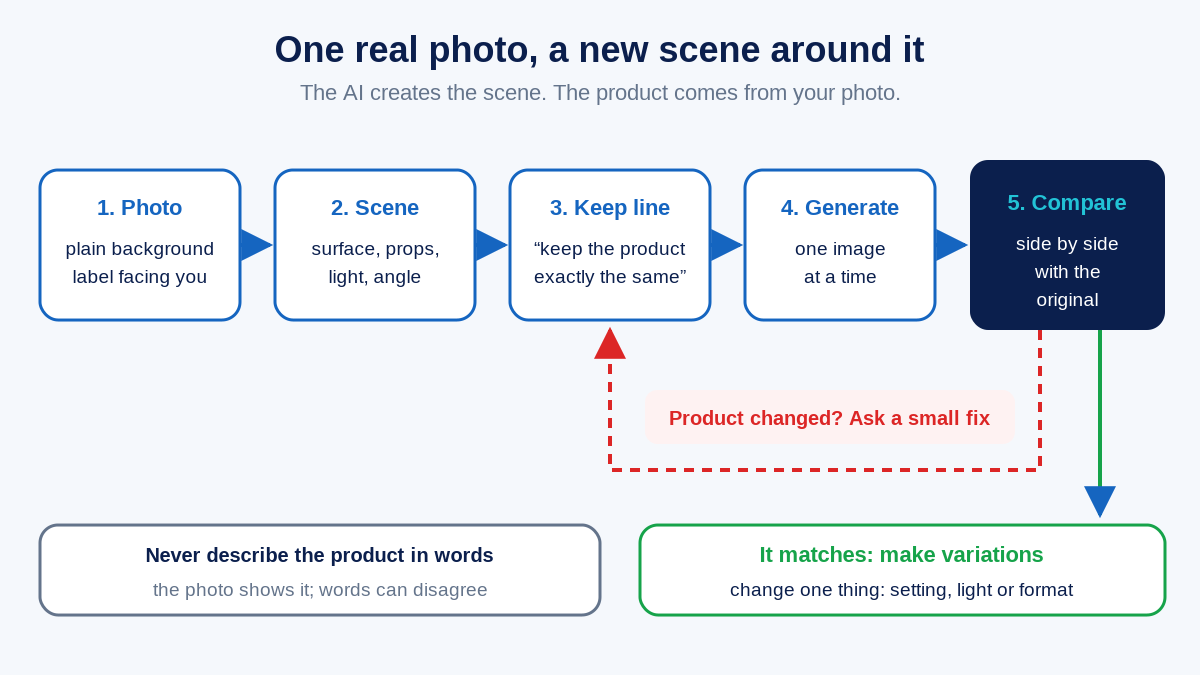
An ad makes a promise: this is what you will get. If the box in the ad has a different shape, the colours are off or the label text is garbled, the ad is misleading, even if nobody meant it to be. That's why the order matters:
- The product comes from a real photo. You never ask the model to draw the product from scratch.
- The scene is what the AI creates. Background, surface, props, light and mood are where AI saves you a photoshoot.
- You check the product every time. Even a clear instruction like "keep the product the same" is a request, not a guarantee.
Step 1: Take one clean product photo
The reference photo does most of the work, so spend five minutes on it:
- Plain background. A white wall, a sheet of paper or a plain table. Clutter confuses the model about what the product is.
- Soft, even light. Daylight near a window, no harsh shadow across the label.
- The label facing the camera, straight on, in focus.
- Fill most of the frame with the product, but don't crop any edge of it.
A phone camera is enough. Take two or three angles if the product has an important side (for example a gift box with a printed lid).
Step 2: Write the scene, not the product
Now describe the world around the product as a short paragraph, like a brief for a photographer. Google's guide recommends describing the scene in full sentences instead of a list of keywords, and using photo terms such as lighting setup and camera angle.
A useful structure is: where it sits, what is around it, the light, the camera angle, the mood and the format.
Using the provided photo of the gift box, place the box on a dark walnut
table next to a small brass bowl of almonds and a folded cream napkin.
Warm evening light from a window on the left, soft shadows.
Slightly elevated 45-degree camera angle, the lid in sharp focus,
background gently blurred. Calm, premium mood for a festive gift ad.
Vertical 4:5 image.
Notice what's missing: no description of the box's colours or shape. The photo already shows those. If you describe the product in words and show it, the two can disagree, and the model may follow your words.
If your images keep coming out glossy and plastic, our guide on why AI images look fake explains how to ask for real texture and light.
Step 3: Add a "keep the same" line
Google's editing template for changing one part of an image ends with an instruction to keep everything else exactly the same. For product ads you flip it: the scene changes and the product stays. Add a line like this at the end of your prompt:
Keep the gift box exactly as it is in the photo: same shape, same
colours, same logo and same label text. Do not redraw, recolour or
resize it. Only change the scene around it.
Google also suggests describing what you want rather than what you don't want. So "a clean, empty table edge on the right" usually works better than "no clutter".
Step 4: Check every result against the original
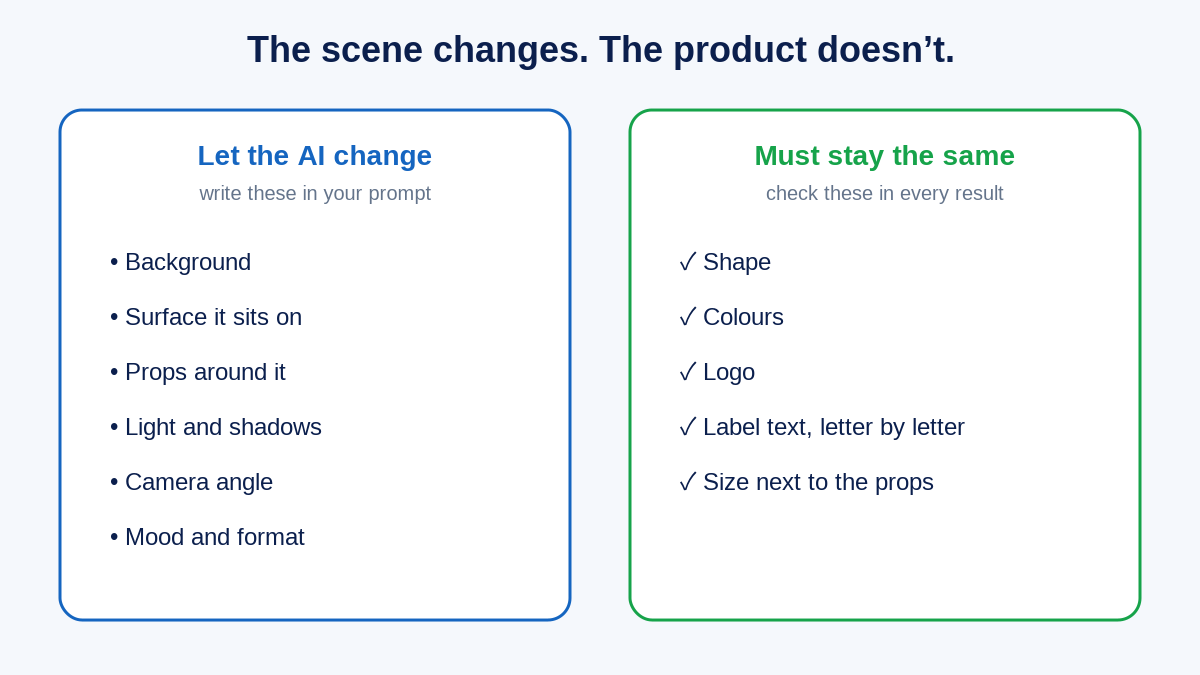
Put the result and your original photo side by side, at full size, and go through this list:
- Is the shape the same (corners, lid, handle, cap)?
- Are the colours the same, or has warm light tinted the packaging too much?
- Is the logo sharp and correct, letter by letter?
- Is the label text readable and spelled exactly as on the real product?
- Is the size believable next to the props? A gift box shouldn't look as small as an almond.
If anything is wrong, don't start over. Image tools that support conversation let you ask for small fixes, and Google's guide recommends exactly that: small follow-up requests instead of expecting a perfect first result. For example: "The logo on the lid is blurred. Keep everything else the same and make the logo match the original photo exactly."
If the label still won't come out right after a couple of tries, use the AI image as the background and place your real product photo on top in an editor. That is slower, but the product is then guaranteed to be the real one.
Step 5: Make variations for testing
Once one scene works, keep the same product line and change one thing at a time to get a small set of ads to test:
- Setting: kitchen table, office desk, outdoor picnic
- Light: morning daylight, warm evening, bright studio
- Format: 4:5 for feed posts, 9:16 for Reels and Stories, 1:1 for a catalogue
Changing one thing at a time tells you which change made an ad work better. If you plan to turn the best image into a short clip, our guide on writing image-to-video prompts shows how to keep the product steady while the camera moves. And if the ad also has a person in it, see how to keep the same AI character across images.
Be honest about AI in ads
Product ads made this way are AI-generated images, even though the product is real. Many ad platforms have rules on AI-made or altered content, and some ask you to label it, so check the current rules of the platform you advertise on. Never use AI to make a product look bigger, fuller or better made than it really is.
Product ad campaigns like this, from the reference photo to a finished short video, are one of the projects in our AI Content Creator Program.
Frequently asked questions
Can I make a product ad image without a photo of the product?
You can make a concept image, but don't use it as an ad for a real product. Without a reference photo the model invents the product's details, so the ad won't show what the customer actually gets.
Why does the AI keep changing my label text?
Small text is one of the hardest things for image models to copy exactly. Use a sharp, straight-on photo, say "same label text" in the prompt, ask for a small fix if it's wrong, and as a last resort place the real photo over the AI background in an editor.
Which aspect ratio should I use for an ad?
It depends on where it will run. Vertical 9:16 suits Reels, Stories and short video feeds; 4:5 and 1:1 suit feed posts. Check the current ad specs of the platform, and say the ratio in your prompt, because Google notes that edits usually keep the ratio of the input image unless you ask otherwise.
Is it okay to use AI images of a client's product?
Yes, if the client agrees and the product shown is accurate. Get their approval on the final images before anything is published, and keep the original photos you worked from.
- #ai product photography
- #product ads
- #ai images
- #image editing
- #prompting
Want to learn AI video properly?
The AI Content Creator Program takes you from your first prompt to a portfolio you can show: 27 short, focused lessons in easy Urdu, with a weekly live session and tasks our team reviews.
Enroll now